
LoboTrack has three pieces that are worth keeping apart: contacts (the people you write to), subscriber lists (the topics each person can unsubscribe from separately) and tags (groups to organize your contacts and pick recipients). They all live under Contacts, in the web app's side menu.
How contacts get in
The web app has no form for creating a single contact by hand. Contacts come in on their own:
- When you send. Every address you send a tracked email to, from the Gmail extension, LoboTrack web mail or the web app, becomes a contact. That is why the page is called "Collected Contacts".
- When you import a CSV or XLSX file, or your Gmail contacts: see Importing contacts.
- From LoboTrack web mail (shown as "LoboMail"): its "Contacts" page shows your LoboTrack contacts, lets you create and edit them, and when you open it, it adds the mailbox's contacts to a list named after the account. See Contacts and lists in LoboTrack web mail.
Your plan does not limit how many contacts, lists or tags you can keep.
The Contacts page
At the top, cards filter the list by status (only those with at least one contact appear): "Active" (opened or clicked at least once), "No activity", "Bounced", "Blocked" and "Unsubscribed" (from at least one of your lists). Below, each contact with their "Lists", "Total views", "Total clicks", "Last campaign" and "Status". A list shown in red means they unsubscribed from it.
- You can search (from three characters, or with a full address) and filter by lists and by tags. If you combine several, you get the contacts that have any of them.
- The pencil in the "Status" column changes the status to "Active", "Bounced" or "Blocked". "Unsubscribed" is not changed here: it depends on each list.
- Download exports every contact that matches the filters as CSV or XLSX.
- Clicking a contact opens their page: lists, tags, mailbox type (Gmail, Outlook, iCloud, Yahoo, "Own server" or "The domain does not receive email"), activity, possible forwards and their campaigns.
Subscriber lists
They are "Topics each contact can subscribe to — or unsubscribe from — separately.": someone can leave your newsletter and keep getting your customer notices. Every campaign goes to a list, chosen when you compose it, and the list decides who gets written to and how each recipient can unsubscribe.
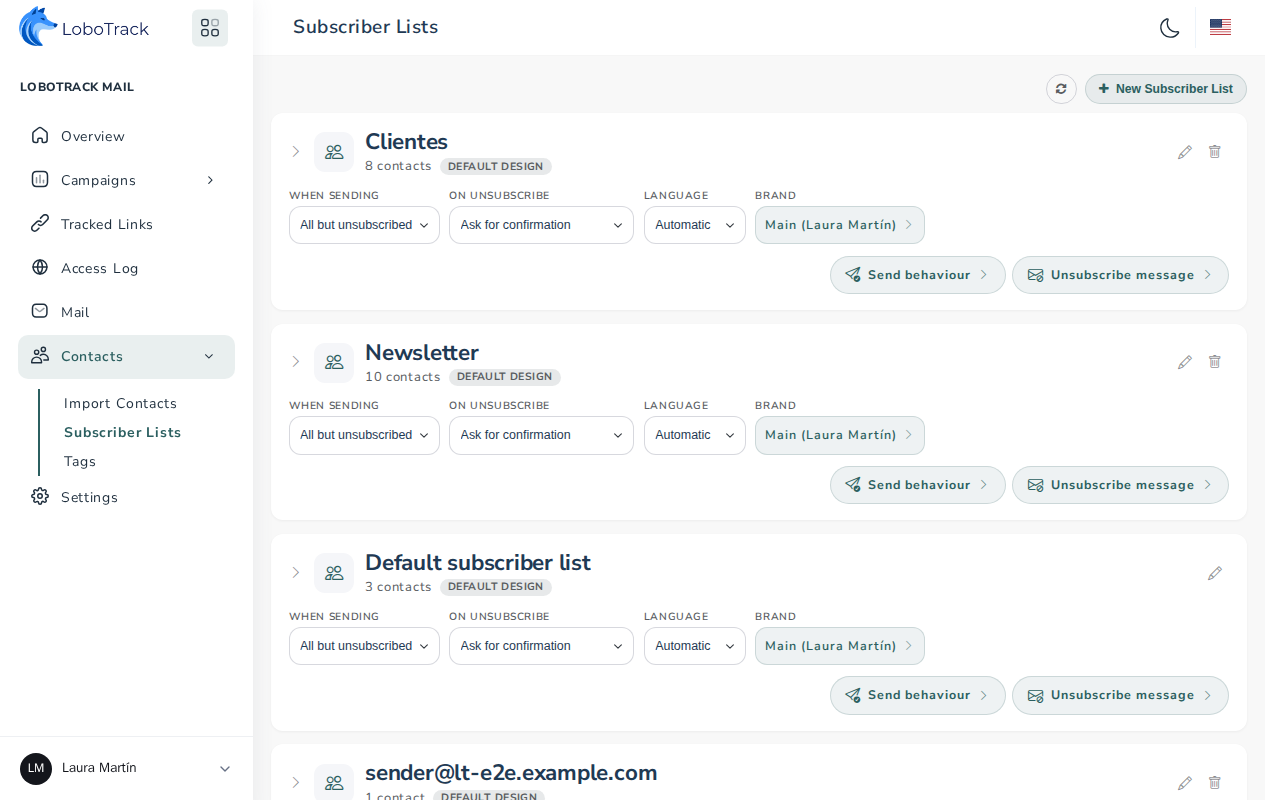
- You create them in Contacts › Subscriber Lists with "New Subscriber List" (a name of up to 120 characters that is not already taken).
- Each list has "Add Contacts" (adds contacts that already exist), "Open full contacts list", "Unlink", "Rename list" and the trash icon. Deleting a list does not delete its contacts.
- Within each list, every contact has a status you can change: "Unconfirmed", "Active" or "Cancelled" (unsubscribed). In the send behaviour editor, those same statuses are called "Unknown", "Subscribed" and "Unsubscribed".
- When you send a campaign, its recipients join the list with that list's "Starting status for new contacts" ("Unknown" by default).
The default list. If you do not pick a list, the campaign goes to the "Default list" ("Default subscriber list" in the campaign editor, "General list (default)" when composing in the Gmail extension or LoboTrack web mail). It is created automatically, cannot be renamed or deleted, and on its unsubscribe page the recipient sees no list name, just generic text.
Contacts with no list. A contact imported from a file joins no list until you add it to one or send it a campaign. The web app has no "no list" filter; the "Contacts" page in LoboTrack web mail does.
Each list's settings
Each list's gear, "Settings for this list", leads to "Configure the send behaviour" and "Customise the unsubscribe page". You also find them under Settings › Subscriber lists. That is where you decide:
- Who gets the email: "Everyone except those who unsubscribed (recommended)", "Confirmed subscribers only" or "Everyone, no exceptions". The last one writes even to people who unsubscribed: use it only for transactional or legal messages, never for marketing.
- "Skip bounces and technical failures", on by default: it leaves out bounced or blocked contacts. More in Bounces, blocks and unsubscribes.
- The starting status for new contacts.
- The unsubscribe options and the unsubscribe page: see The unsubscribe header and the link in the body.
Tags
Tags group contacts freely, with no effect on unsubscribes. You manage them in Contacts › Tags ("New Tag", "Edit Name", color, delete) and assign them in bulk from the contact list with "Add / Remove Tags". They are for picking recipients: "Add from tags" in "New campaign", and "Tags" in the Gmail extension and in LoboTrack web mail, add every contact that carries them.
Deleting a contact
LoboTrack web mail does not let you delete a contact who has received campaigns.