
Besides the contacts LoboTrack collects as you send, you can bring in your own from two places: a file (CSV or XLSX) or your Gmail contacts. Both imports live in the web app, under Contacts › Import Contacts (also reachable with the "Import Contacts" button on the contact list). At the top you choose the source: "File" or "Gmail".
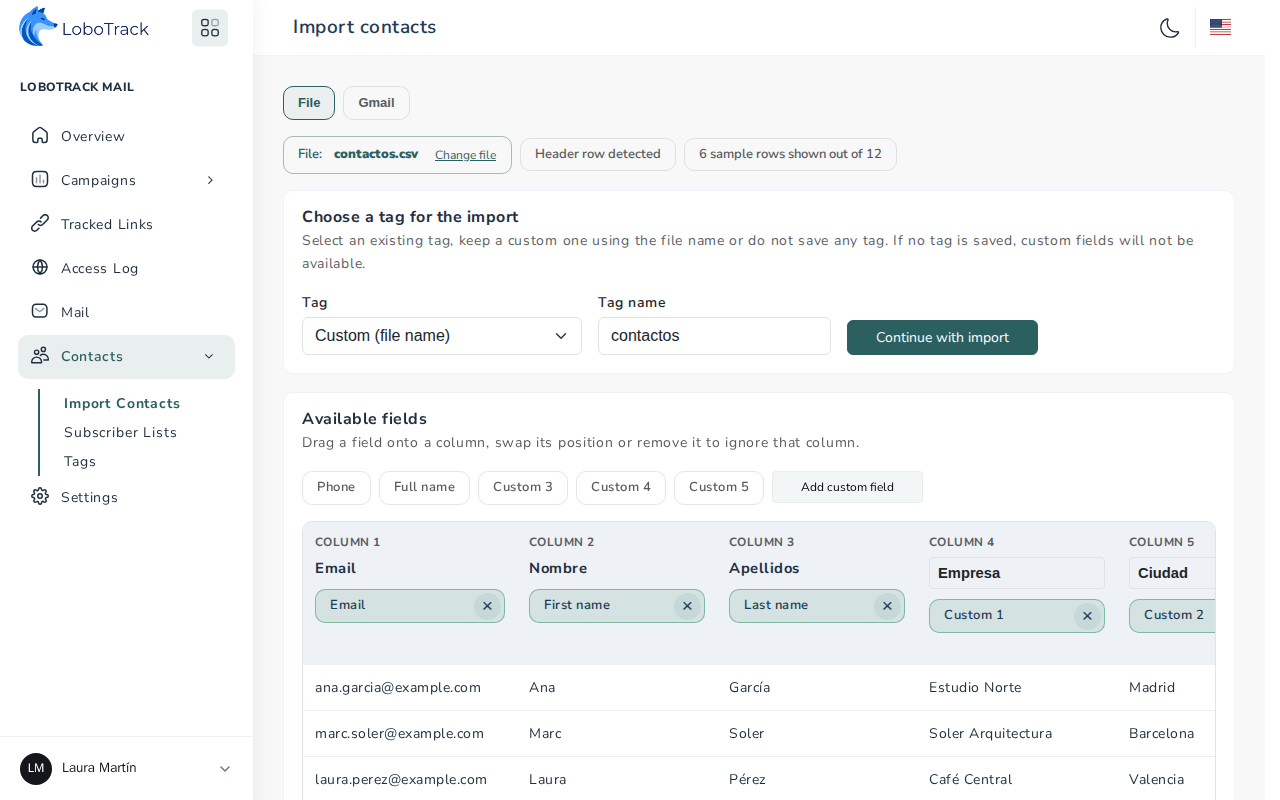
From a file
- With "File" selected, click "Select file" or drop the file onto the screen.
- Check the preview: LoboTrack tells you whether it found a header row ("Header row detected" or "No clear header detected") and shows a few sample rows.
- Choose the tag for the import: one you already have, "Custom (file name)" or "Do not save tag".
- Give each column a field by dragging it from "Available fields": Email (required), "First name", "Last name", "Phone", "Full name" or a custom field. Columns with no field stay as "Ignored column".
- Click "Continue with import". When it finishes you will see how many contacts are new ("Inserted") and how many already existed and were brought up to date ("Updated").
What to know about the file:
- Formats: CSV and XLSX only. From an XLSX file, only the first sheet is read. A CSV file must be UTF-8; the separator (comma, semicolon, tab or vertical bar) is detected automatically.
- Size: up to 25 MB per file.
- Custom fields: they need a tag. If you choose "Do not save tag", custom columns are not saved.
- Duplicates: if an address appears several times in the file, the last row wins. If the contact already existed, it is updated only in the columns you mapped; everything else is left alone.
- Invalid addresses: rows with a malformed email are skipped, and the final summary does not list them. If the inserted and updated counts do not add up to your file, check those addresses.
From Gmail
You can import the contacts of a Gmail account you have linked under Settings › Sending accounts (if you have not linked one yet, see Connect your mailbox).
- Choose "Gmail" as the source and, under "Choose a Gmail account", the account to import from.
- Under "Select to import:", choose "My contacts".
- If you like, pick a tag in "Assign tag (optional):".
- Click "Continue".
Only the contacts saved in "My contacts" are imported: Google's "Other contacts" (people you have exchanged emails with but never saved) are not available. If you have no Gmail linked, you will see "No linked accounts" and "Connect a Gmail sender first.". If Google's permission has expired ("Session expired"), reconnect the account as explained in My mailbox needs reconnecting.
If something goes wrong
| Message | What is happening | What to do |
|---|---|---|
| "Only CSV or XLSX files are supported." | The file has another extension. | Save it as CSV (UTF-8) or XLSX. |
| "The selected file could not be read." | The file is damaged or cannot be opened. | Open it in your spreadsheet app and save it again. |
| "The file does not contain previewable rows." | The file is empty, or the data is not on the first sheet. | Put the data on the first sheet. |
| The import does not go through | No column is mapped to Email, or the file is over 25 MB. | Map Email to the column with the addresses, or split the file. |