
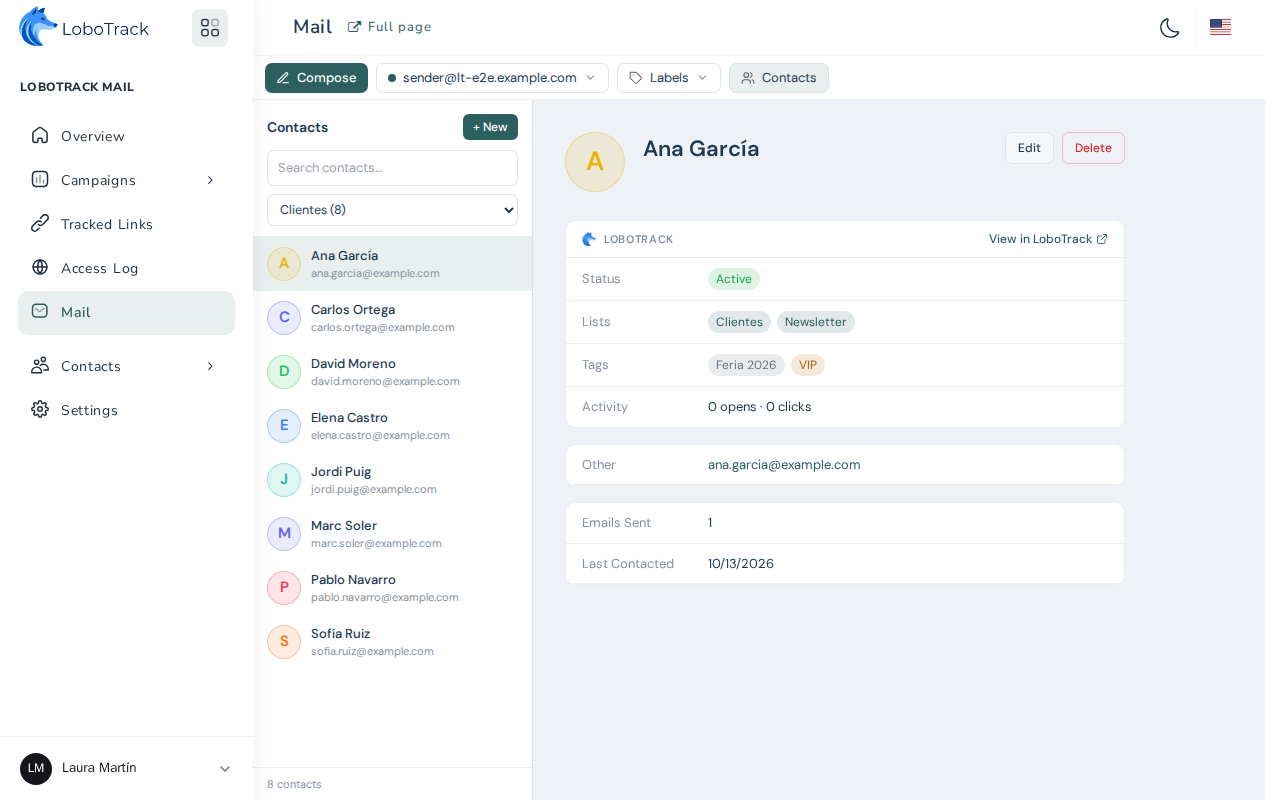
In LoboTrack web mail (LoboMail), "Contacts" isn't a separate address book: with LoboTrack connected, it shows your LoboTrack contacts, the same ones as in the web app, with their lists, tags and status. Anything you create or change here changes in LoboTrack. And there's one thing worth knowing up front: opening the page adds your mailbox's contacts to LoboTrack.
Open Contacts
- With the web mail inside the web app: the Contacts button in the top bar.
- In full page: the people icon at the bottom of the sidebar.
You need LoboTrack connected in the web mail. Without it, the page shows the web mail's own contacts, not LoboTrack's; when you connect or disconnect, the list reloads by itself.
The list loads 100 contacts at a time and fetches more as you reach the bottom. To find someone, use Search contacts….
What happens when you open it
- If the list didn't exist, it's created, and you'll also see it under Contacts › Subscriber Lists in the web app.
- A contact who was already in LoboTrack isn't changed: they're just added to that list.
- This happens at most once a minute, and each pass checks up to the first 5,000 contacts in the web mail.
To bring in contacts from other sources (a CSV or a spreadsheet), use Import contacts in the web app.
Filter by list or tag
Below the search box there's a filter:
- All contacts.
- Lists: "No list" (always shown, even at 0), "Default list" and the rest of your lists, each with its number of contacts.
- Tags: your contact tags, without counts.
What each list is and how the default one works: Contacts, lists and tags.
The contact card
Under each contact's header there's a LOBOTRACK section with:
- View in LoboTrack: opens the contact in the web app.
- Status: Active, Unsubscribed, Bounced or Blocked.
- Lists: the contact's lists. If they've unsubscribed from one, it's struck through with "· unsubscribed".
- Tags: the contact's tags.
- Activity: "{n} opens · {n} clicks".
The web mail's own "Emails sent" and "Last contacted" fields reflect the campaigns the contact has received.
Create, edit and delete
- New opens "New Contact". Each contact has a single email address, with no company or notes fields. A new contact is also added to your mail account's list.
- Edit Contact works the same way.
- Delete: a contact who has already received campaigns can't be deleted here. You'll see "This contact has received campaigns: delete it from LoboTrack.". Before you do it in the web app, bear in mind that deleting a contact also deletes their campaigns.
Other messages: "A contact with this email already exists.", "An email address is required." and, if the connection expires with the page open, "Connect LoboTrack to manage your contacts.".
Picking recipients while composing
With LoboTrack connected, typing two or more characters in To, Cc or Bcc brings up a picker of its own. At the top, under LOBOTRACK, your LoboTrack contacts with their name, email, up to three lists and three tags, flagged in red if they're Unsubscribed, Bounced or Blocked. Below, From the mail client: people you've written to or who've written to you. Use the arrow keys, Enter, Tab, Esc or the mouse. Without the connection, you get the web mail's usual picker.
Contact tags and conversation labels
The web mail has two ways of grouping things that are easy to mix up:
| LoboTrack Tags | Conversation Labels | |
|---|---|---|
| What they are | Tags on contacts, for grouping people | Personal markers on your conversations |
| Where they are | The filter and card on "Contacts", and the LoboTrack window when composing | The "Labels" menu in the top bar, the sidebar and each email's menus |
| What they do | When composing, they add the contacts who have them as recipients | Help you sort and find emails; they don't send anything |
| Where to manage them | Contacts › Tags in the web app | In the web mail itself |
LoboTrack tags are the same in the web app and in the Gmail extension.