
In LoboTrack, whatever you subscribe to belongs to the account (your company, or you as an individual), not to the person. An account can have several members, and when several people need to send on a paid plan, that is what the Enterprise plan is for: it is bought in licenses.
All of this is managed in your account portal, in the "Members" section. From the web app you get there through Settings › Account › "Members".
Users, accounts and roles
Your user is your email address with your password, or your Google sign-in. The account is the organization: it has its own details, billing details, members and plan. The same user can belong to several accounts and choose which one to work in under "Active account".
Every member has a role: owner, admin or member.
| Owner | Admin | Member | |
|---|---|---|---|
| Invite people | Yes | Yes, but not as owner | No |
| Change roles | Yes | No | No |
| Remove people | Yes | Yes, but not an owner | No |
| Subscribe, change plans or cancel | Yes | Yes | No |
| Share out licenses and limits | Yes | Yes | No |
| Edit the account details | Yes | Yes | No |
| Leave the team | No | No | Yes |
A member cannot see prices, licenses, invoices or the team list. An account always keeps at least one owner.
Inviting someone
- In "Members", click "Invite".
- Type the person's email address, choose their role and confirm with "Invite".
- If asked, confirm your identity in the "Confirm it is you" window (your password, or signing in with Google again). For the next 10 minutes it will not ask again.
- LoboTrack emails them the link. The screen also shows the link with a "Copy" button, in case you would rather send it yourself.
Even though that screen says "not emailed yet", the invitation does go out by email. It expires after 7 days; until then it is listed under "Pending", where you can cancel it with "Revoke".
Accepting an invitation
Whoever gets the link sees "You have been invited" and clicks "Accept invitation" or, if they do not have a user yet, "Create my user and join". If someone else's session is open in that browser, they will see a "Switch user" button. If the page says "The link has expired or has already been used.", a new invitation is needed.
Enterprise plan licenses
Only Enterprise shares out licenses: it is bought for between 10 and 500 users. Pro, Max and Professional are single-person plans; as the portal puts it, "Single-user plans apply their limits as they are."
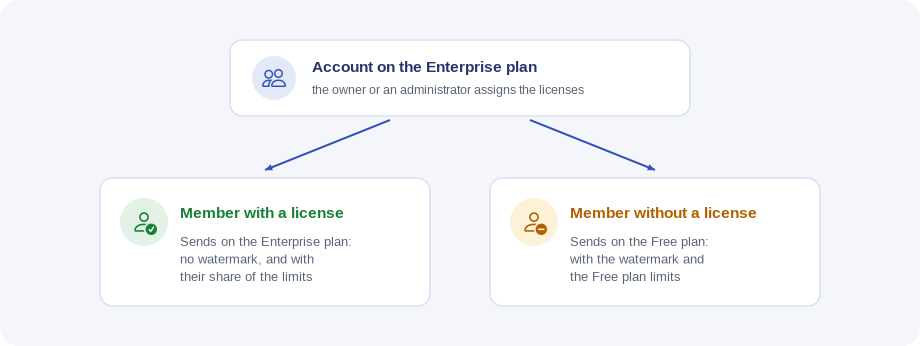
- When someone accepts an invitation, they get a license automatically if there are any free. If there are none, they join the account without a license.
- Giving or removing access: in "Members", click the product chip next to each person ("Give access to…" or "Remove access to…"). You cannot use more licenses than you bought; to get more, change the number of users with "Update licenses" (Billing).
- Priority: if there are ever more people with access than licenses, for instance after buying fewer, the people at the top of the list keep theirs. You reorder the list by dragging.
Sharing out the limits
On Enterprise, the limits form a shared pool: each license adds 2,000 emails per day, 1,000 emails with attachments and 3 email accounts. The owner or an administrator decides how they are split in "Usage & limits" or in "Members › Manage limits":
- "Split evenly": everyone with a license gets the same share.
- "Assign manually": you set each person's figure, without going over the total you bought.
Each member sees their share in the portal, in the "Products" section, under "Your allowance".
If you have no license
A member without a license, in an account that shares out licenses, sends with the Free plan limits and with the watermark. The Gmail extension shows this as "Free plan — no license assigned" and the web app as "No license assigned: you are using the Free plan limits." Ask an administrator to give you access.
Removing someone or leaving the team
- Removing someone: the owner or an administrator clicks "Remove" in "Members". That person loses access to the account and its products, but their user is not deleted: they can sign in with an account of their own.
- Leaving the team: only people with the member role can do this. In the portal, go to Account › "Leave this account" and then "Leave and create my account"; in the web app, use the "Leave account" button in Settings › Plans. A new account of your own is created on the Free plan, with you as its owner, and your license is freed up. It is the step to take if you want to subscribe to a plan of your own.