
LoboTrack sends from the Gmail mailbox you linked in the web app. If you open a different Gmail account in your browser (say, your personal one instead of your work one), the extension tells you with the Linked accounts don't match window. Here is what each option means, especially for replies and attachments, and how to sort it out for good.
Why it appears
When you open Gmail, the only mailbox the extension adopts on its own is the one you have open, and only if it is linked to your LoboTrack account and its permission is still valid. If it isn't, but you have other Gmail accounts linked, it shows you this window so you can choose: it never picks one for you.
If you have no Gmail account linked at all, you will see the window for linking one in the web app instead. See Connect your mailbox.
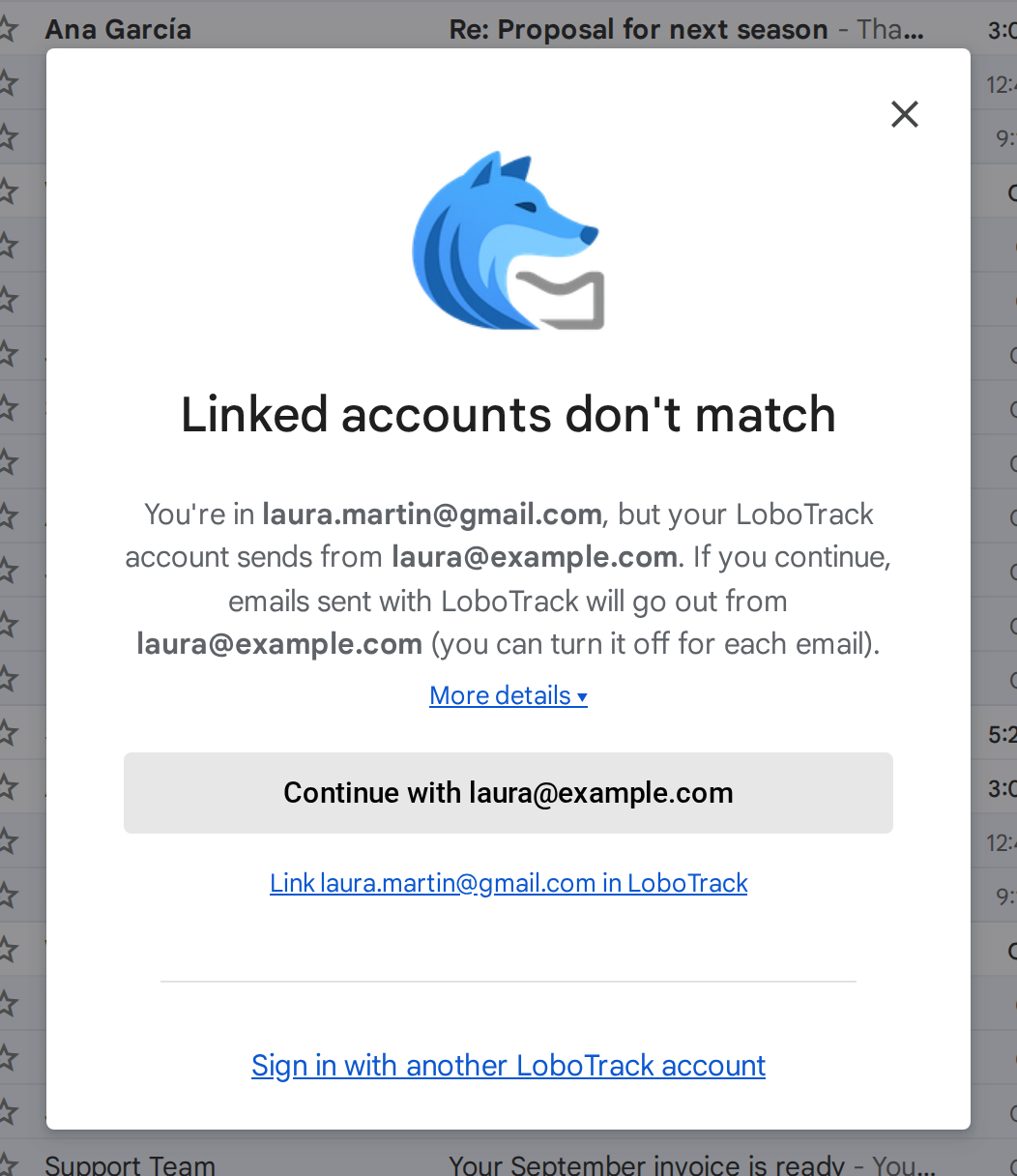
What the window offers
- The text tells you which Gmail you are in and which account your LoboTrack sends from. More details expands the consequences: replies and the Sent copy will go to the other account, and so will delivery and bounce notices.
- Continue with …: one button for each usable linked Gmail account, with its address. The first one is highlighted.
- Link … in LoboTrack, with the address of the open Gmail: takes you to the web app to link it.
- Sign in with another LoboTrack account, in case the open Gmail is linked to another LoboTrack account of yours.
Once you have made a choice, the window won't come back for that same pair of accounts.
Linked Gmail accounts that have expired aren't listed and can't be reconnected from here: you do that in the web app (My mailbox needs reconnecting). If you pick one that has stopped responding, you will see … couldn't be used: it may have expired. Reconnect it from LoboTrack. If none can be used, the window only offers to connect the open Gmail.
If you continue with the other account
You can carry on working, but it is worth knowing how your tracked emails will go out:
- They go out from the linked account, not from the Gmail you have open. The compose window's badge reminds you with from and that address.
- Replies and the Sent copy go to the linked account. So do delivery and bounce notices: you won't see them from the open Gmail.
- That is why the extension treats this as testing only: under Sending account, that account shows (testing) and a yellow note reminds you.
If a particular email doesn't need tracking, set it to No tracking: Gmail sends it as usual from the open Gmail, attachments included. That is what the window means by "you can turn it off for each email".
The lasting fix: link the open Gmail
- In the window, click Link … in LoboTrack. You can also go straight to the web app, to Settings › Sending accounts.
- Click Link Google account and, in Google's window, choose the same account you have open in Gmail. Accept the permissions.
- Go back to the Gmail tab. The extension detects the new account, closes the window on its own and, from then on, sends from the open Gmail.
Each linked Gmail account takes up one of your plan's sending accounts. The linking details are in Connect your mailbox.
Changing the account for a single email
In any compose window you can choose the sending account: in the LoboTrack panel (Sending account) or from the wolf button (Sending account). The current one is ticked, and those that aren't the open Gmail show (testing). You will also find Connect … to LoboTrack there if the open Gmail isn't linked, and Reconnect … (expired) for each expired account.