
LoboTrack Mail works on top of your own Gmail mailbox: emails go out in your name and replies land in your inbox, as always. For that it needs you to link your Google account once. Here is where that happens, what exactly you authorize, and how to undo it.
Where you connect
There are two places, and both end up on the same Google permissions screen:
- In the extension, inside Gmail. Signing in with "Continue with Google" logs you in and links your mailbox in a single step. If you sign in with email and password instead, the extension will then ask you to "Connect with Gmail".
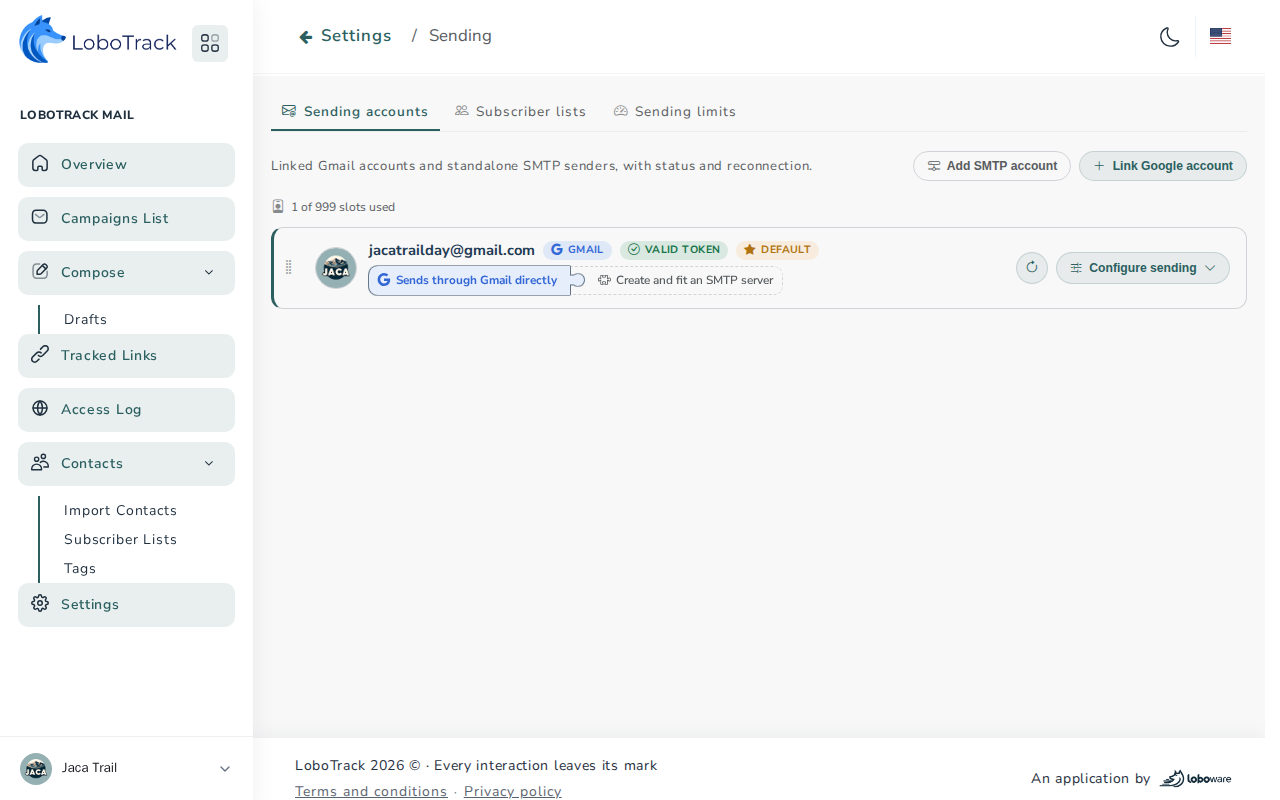
- In the web panel, under Settings › Sending accounts › Link Google account. This is the way to add more mailboxes or to reconnect one that has lost access.
What you authorize and why
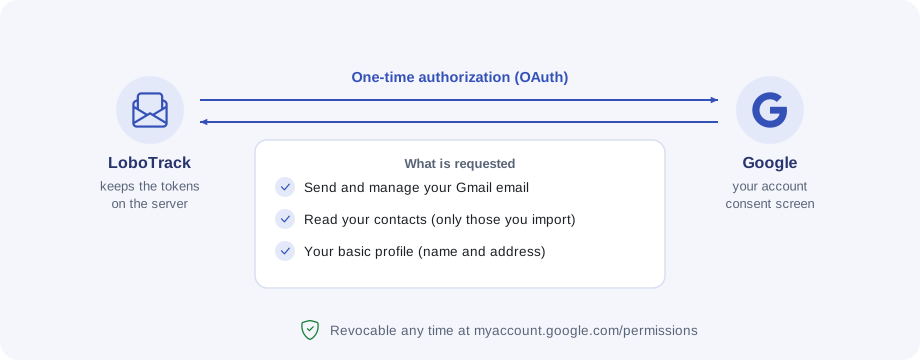
On Google's consent screen you will see these permissions:
| What Google's screen says | What LoboTrack uses it for |
|---|---|
| Read, compose, send and delete Gmail emails | Sending your campaigns through Gmail's servers, preparing drafts when you compose from the panel (and cleaning up the ones no longer needed), and leaving you the reference email where your results are painted |
| See and download your contacts | Importing the contacts you choose into your lists |
| Basic profile information and email address | Signing in with Google and knowing which account is linked |
Gmail requires the full mailbox permission in order to send through its servers: there is no "send only" permission that covers what the application does.
Sending through Gmail is optional
Linking Gmail is the most direct way to start, but not the only way to send. Each sending account can go out through Gmail directly (with Google's daily limits) or through your own SMTP server, without using up your Gmail quota. You can also create a standalone SMTP sender that does not depend on any Google account.
Revoking or reconnecting
You can withdraw access at any time from your Google account's permissions page. If Google expires or revokes the permission, LoboTrack can no longer send with that mailbox. Getting it back is repeating the connection:
- In the extension you will see the "Reauthorize Gmail" notice; under Settings › Sending accounts the account shows as "reconnection needed".
- Click the reconnect button (in the extension or in the panel) and accept the Google permissions screen again.
- Done: your lists and campaigns are untouched throughout.