
The Gmail extension works with your LoboTrack account, the same one you use in the web app. Here is how you sign in, exactly what happens when you sign out (the web app is signed out too in that browser), and how to switch to another LoboTrack account or another Gmail account.
How you sign in
The Log in with LoboTrack screen appears on its own when you open Gmail without a session, at most once a day. If you close it, you can open it whenever you like from the header or the alert in the wolf menu, or by clicking the Connect LoboTrack badge in a compose window.
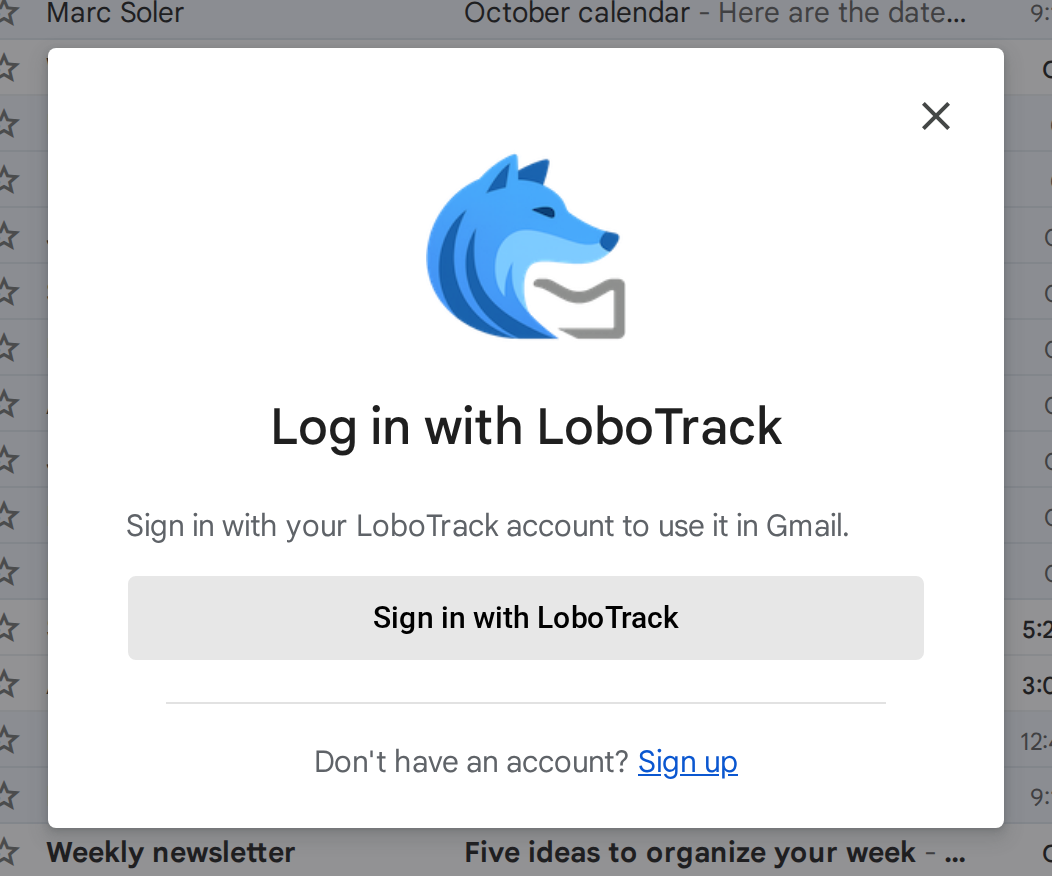
- Sign in with LoboTrack opens a small window: the LoboTrack sign-in window, where you sign in with your account.
- If you are already signed in on this browser (for example, in the web app), you will see Continue as … with your email, which doesn't ask for a password, and Use another account.
- Don't have an account? Sign up takes you to create one. When you finish, you are already signed in.
The extension then looks for your linked Gmail account: it doesn't ask for Google permissions, because the mailbox is linked in the web app. The whole journey is in Install the extension.
Once you are in, the session renews itself while you work.
Signing out
- Open the wolf menu in Gmail's top bar.
- Click Sign out (also on the web). The same button is at the bottom of Session User Info, the card that opens when you click your name in the menu.
What happens when you click it:
- Your LoboTrack session in the extension is closed, and so is your account session in this browser, which is the same one the web app uses. That is why the web app is signed out too in this browser.
- The extension's sessions for every Gmail account you use in this browser are cleared.
- Even with no connection, the extension forgets the session anyway.
- The sign-in screen comes back, and the extension won't sign you back in on its own, even if there is a session open in the browser: it signs in when you decide.
It works the other way round too: if you sign out in the web app (from the account menu at the bottom of the sidebar), the extension notices within a minute, or as soon as you return to the Gmail tab, and shows you the sign-in screen. Signing out on the web also signs you out of LoboTrack web mail, shown as "LoboMail".
Signing in with another LoboTrack account
There are several ways, and not all of them sign you out of the web app:
| Where | What it does | Signs out of the web? |
|---|---|---|
| Sign-in screen › Use another account | Opens the sign-in window asking for your details, so you can sign in with another account. | No |
| Window for linking your Gmail › Sign out / use another account | Forgets the extension's session and goes back to the sign-in screen, with Continue as … or Use another account. | No, despite saying "Sign out" |
| Linked accounts don't match › Sign in with another LoboTrack account | Same as Use another account; afterwards you choose the mailbox again. | No |
| Menu › Sign out (also on the web) | A full sign-out, as described above. | Yes |
Using another Gmail account
The extension remembers the session for each Gmail account you open. If you switch to another Google account in the browser and that Gmail isn't the one you linked, the Linked accounts don't match window appears. What continuing like that means, and how to link that Gmail so you can send from it, is in When the open Gmail isn't the linked one.
If the session gets stuck
If you see an error when signing in (the window was closed before finishing, another sign-in window is already open, LoboTrack has been updated…), see I can't sign in. If nothing works, the last resort is About LoboTrack › Hard reset, which erases all LoboTrack data in this browser (session, options and local caches) and signs you out. Then just sign in again.