
After a tracked send, you don't need to leave Gmail to see how it is going: a double check tells you whether everything has gone out and whether it is being read, and a LoboTrack label keeps it filed. Here is what each color means, where they appear and how to change them.
The reference email
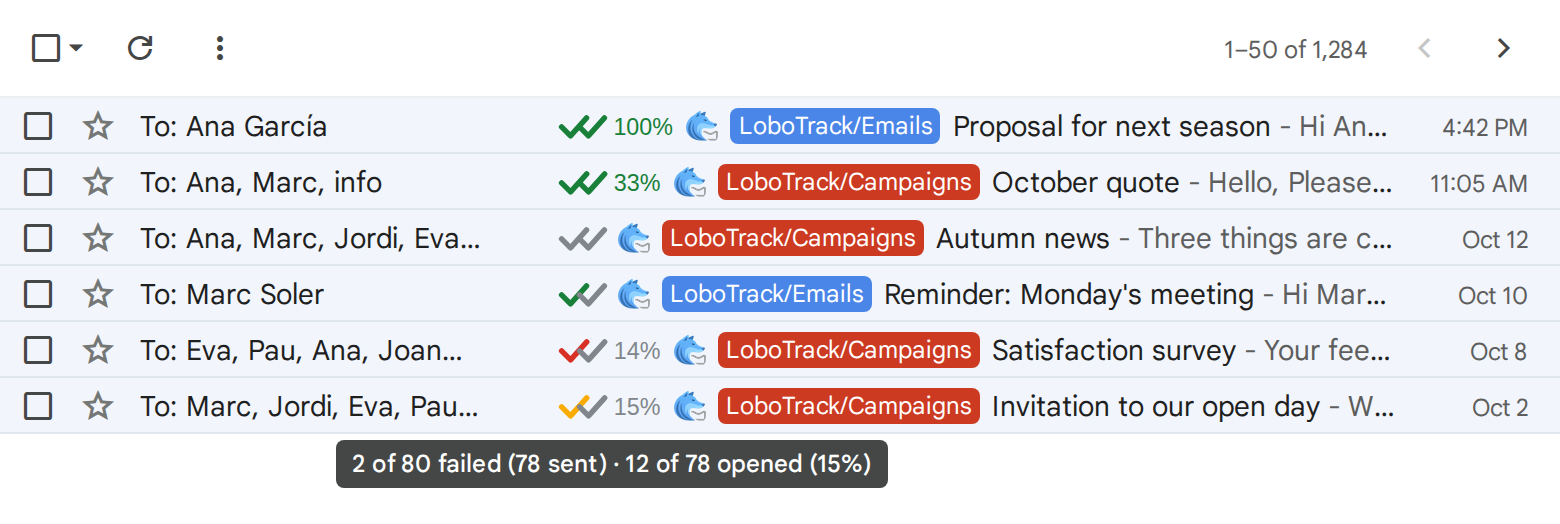
For every tracked send, LoboTrack leaves a copy of the email in your mailbox: the reference email. That is the one that carries the checks and the label, and it shows the recipients of the send. Other Gmail rows show nothing.
To keep it out of your way, the LoboTrack server archives it (it leaves the Inbox and is marked as read) and labels it according to the mode:
- LoboTrack/Emails: sends in Tracking Mode.
- LoboTrack/Campaigns: sends in Campaign Mode.
Click the label in Gmail's left-hand panel and you will have all your tracked sends together. If you would rather keep the reference email in your Inbox, change it in the web app under Settings › Tracking with Keep it in the inbox (it applies to future sends).
What each check says
The first check is about sending and the second about reading. To their right is the read percentage, as soon as there is at least one read.
| Check | Color | Meaning |
|---|---|---|
| Sending | Gray | The send hasn't finished yet. |
| Sending | Green | It has finished and everything went out. |
| Sending | Amber | It has finished, but some emails couldn't be sent (by default 1% is enough: a single failure turns it amber). |
| Sending | Red | The send was stopped or failed and won't continue. |
| Reading | Gray | The read goal hasn't been reached yet; the percentage tells you how far along it is. |
| Reading | Green | The goal has been reached: by default, at least 20% of the recipients it reached have read it. |
A red or amber check doesn't mean everything was lost: the emails that went out, went out. To find out what happened and, where possible, retry the send, open the campaign and see Campaign statuses.
The text on hover
Hovering over the checks shows a summary: first the sending part and then, after a "·", the reading part. For example:
- Sending: 12 of 40 emails · no opens yet
- Fully sent (40/40) · 9 of 40 opened (23%)
- 2 of 80 failed (78 sent) · 12 of 78 opened (15%)
- Stopped: 30 of 80 sent, and it will not continue · 5 of 30 opened (17%)
The small wolf after the checks (Open in LoboTrack) opens that campaign in the web app, with the per-recipient detail. See Reading a campaign's results.
When they update
The checks aren't instant, and it helps to know why:
- The extension only checks the rows you have on screen, once a minute and every time you return to the Gmail tab. With the tab in the background, it checks nothing.
- Right after sending, the check may take a little while to appear, until the server recognizes the reference email.
- Offline, you see the last saved data, which won't update until you are back online.
If an open shows up the moment you send, see Why do I see an open right after sending?.
Changing the colors or hiding the checks
Everything is set in the web app under Settings › Tracking, and it only affects you:
- Show the markers in Gmail: turn it off and the extension stops drawing the double check. Rows that already had it may keep it until Gmail redraws them.
- The read goal (20% by default) and the failure threshold (1% by default), with values from 1 to 99. The same colors are used in the web app's campaign list.
The other options on that page are covered in Web app settings.