
In LoboTrack web mail (the one you'll see as LoboMail) you don't set up mailboxes by hand: they come from LoboTrack. You add the mailbox once in the web app and it shows up in the web mail on its own. Using it with tracking takes two steps: add the mailbox with its incoming (IMAP) details and, the first time you compose, connect LoboTrack.
Which mailboxes work
| Mailbox | Works in web mail? |
|---|---|
| SMTP account with IMAP (username and password) added to LoboTrack with "Use this account in the mail client" | Yes, with every LoboTrack feature |
| Gmail or Google Workspace linked with "Link Google account" | No: it doesn't appear in the web mail. Use it with the Gmail extension or from the web app |
| Microsoft 365 or Outlook through Microsoft sign-in | No |
| Mailbox added by hand in the web mail's own settings (Settings › Accounts) | You can read and write, but without LoboTrack features: no tracking and no LoboTrack options when composing |
If you added a mailbox by hand and later add the same address to LoboTrack, the web mail reuses it instead of creating a duplicate.
Add the mailbox
- In the web app, go to Settings › Sending accounts and click Add SMTP account.
- Fill in the sending details: host, port, TLS, username and password (plus Use a different from email if you need it).
- Leave Use this account in the mail client ticked (it's already ticked when you add a new account).
- Check the IMAP server: it's suggested from your SMTP host (
smtp.yourdomain.combecomesimap.yourdomain.com) with port 993. Same username and password as sending is ticked; untick it if your provider uses different details for incoming mail. - Click Test and save configuration.
- Open Mail: your mailbox appears within a few seconds and the page reloads once.
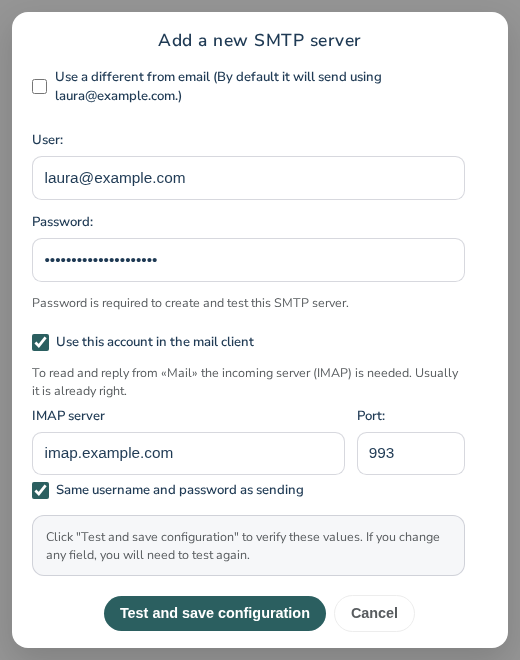
If you'd already added the SMTP account without receiving, open its configuration and tick the box with the IMAP details. Everything else about sending accounts (default sender, limits, removing an account) is covered in Connect your mailbox.
Check that it's receiving
Under Sending accounts, every account with IMAP shows its receiving status:
- receiving ok: the web mail is reading the mailbox without problems.
- receiving pending: it hasn't been checked yet.
- receiving error: hover over it to see the error. Check the IMAP server, the port and the password.
Next to it is the Open mail button ("Read and reply to this account's mail").
The web mail checks your LoboTrack mailboxes when it opens, when you come back to its tab and when you return to "Mail" in the web app. If anything has changed, it reloads the page once. If you remove the account from LoboTrack (or untick the box), the web mail deactivates it: add it back within 30 days and it returns as it was; after that, it's deleted from the web mail along with everything the web mail had stored for it.
Connect LoboTrack the first time
Signing in to the web mail and sending with tracking are two separate connections. The first time you compose from a LoboTrack mailbox, the badge on the compose window will be amber and say "Connect LoboTrack".
- Click Compose and pick your LoboTrack mailbox in From.
- Click the amber Connect LoboTrack badge. The LoboTrack window opens showing "Not connected" and a Connect LoboTrack button.
- A small pop-up window opens. If you're already signed in to LoboTrack, it closes by itself; if not, sign in there.
- You'll see "LoboTrack connected", and the LoboTrack window will say "Connected as" followed by your email.
In full page you can also connect from the LoboTrack section of the sidebar.
The connection renews itself, but it expires after 14 days without use or if you sign out of LoboTrack. When that happens, sending with tracking shows "Connect LoboTrack to send with tracking, or turn tracking off for this email.": connect again and resend. To remove it on purpose, use Disconnect at the bottom of the LoboTrack window.
With your mailbox ready, carry on with Send with tracking from web mail.