
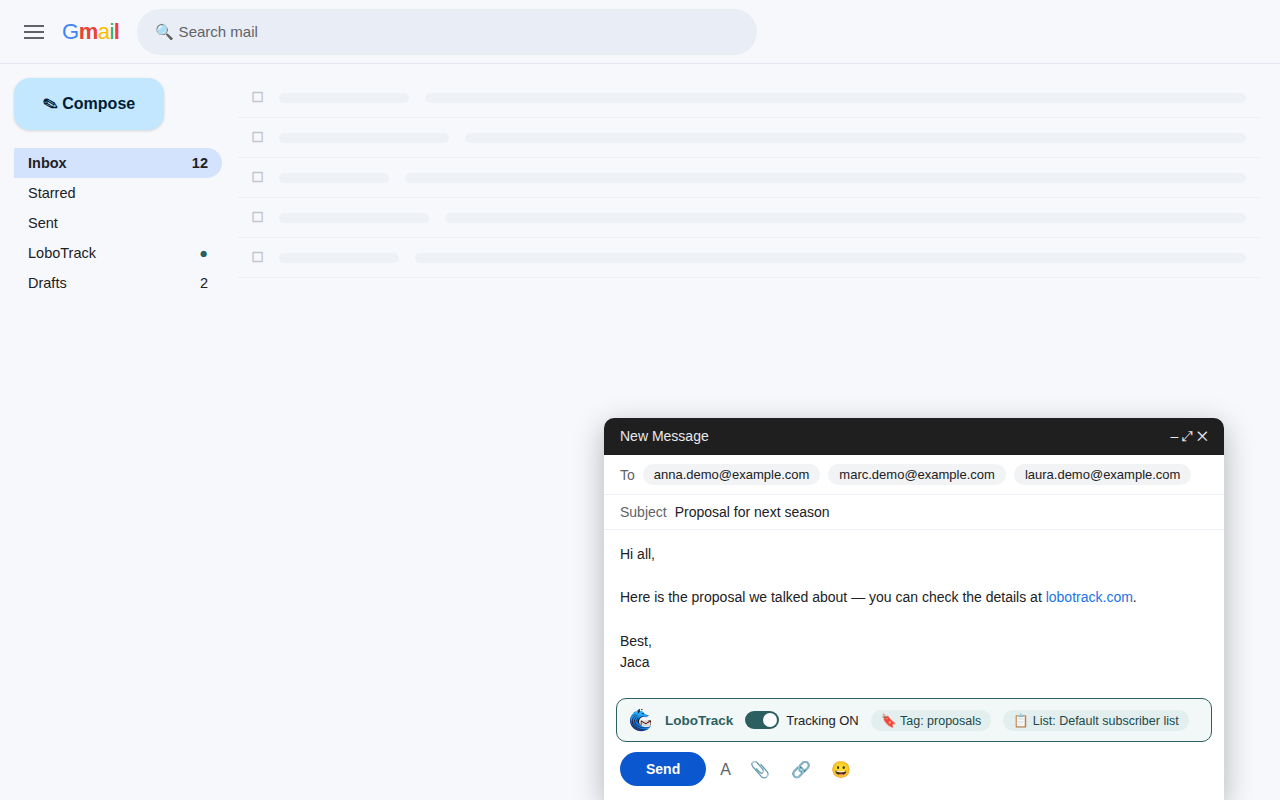
LoboTrack Mail lives inside Gmail: it is a Chrome extension that adds the tracking bar to the compose window, without changing the way you write email. Installing it takes a couple of minutes; here is the full path, from the Chrome Web Store to your first send.
Install and sign in
- Search for LoboTrack Mail on the Chrome Web Store and click Add to Chrome.
- Open Gmail. The extension only works there: the icon in the Chrome toolbar does nothing.
- When Gmail loads, the sign-in window appears. Continue with Google signs you in and links your mailbox in a single step; Sign in with LoboTrack uses your email and password.
- If you signed in with a password, the mailbox is still unlinked: click Connect with Gmail and accept the Google permissions screen.
If you close the sign-in window without signing in, it will not chase you: it reappears at most once a day. You can reopen it any time from the LoboTrack menu (the wolf icon in the compose window).
No linked mailbox, no tracking
Until you sign in and link your Gmail, the extension stays on hold: the wolf button is dimmed and any email you send goes out as a normal Gmail email, untracked. The menu tells you so with an alert ("Sign in to use LoboTrack" or "Link your Gmail to get started") and a one-click button to fix it.
Where your credentials live
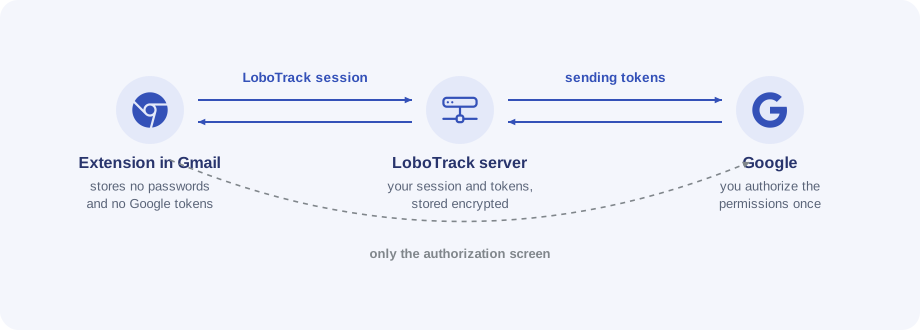
The extension stores no passwords and no Google tokens in your browser. Your session and the sending permissions are kept on the LoboTrack server, and the Google authorization is given once on your account's official consent screen. What exactly you authorize and how to revoke it is covered in Connect your Gmail account.
What changes in your Gmail
After linking you will see three new things:
- The LoboTrack bar in the compose window, with tracking on by default.
- The "loboTrack" label in your label list: tracked emails are filed there.
- The double check next to your tracked sends, with the sending and reading status. What each color means is covered in Send your first tracked email.