
Every tracked send is a campaign in the web app (app.lobotrack.com), whether it went out from the Gmail extension, from LoboTrack web mail (shown as "LoboMail") or from the web app itself. Its detail page brings together everything that is known about that send: who read it, how many times, which links were clicked and what happened to each recipient. This article walks through it from top to bottom.
Getting to the detail page
- In the web app, open Campaigns in the side menu.
- Click the campaign's row. If it is a draft that can still be edited, the editor opens instead of the detail page.
- You can also get there from Gmail, with the wolf next to the reference email's double check ("Open in LoboTrack"), or from LoboTrack web mail, with the wolf badge or "View in LoboTrack".
The header and the status
At the top you see the status badge, the date ("Created on…"), the number of recipients and which sender the recipient saw ("The recipient saw…"). If the campaign did not finish cleanly, a banner explains what happened and, when possible, offers "Retry send". What each status means is covered in Campaign statuses.
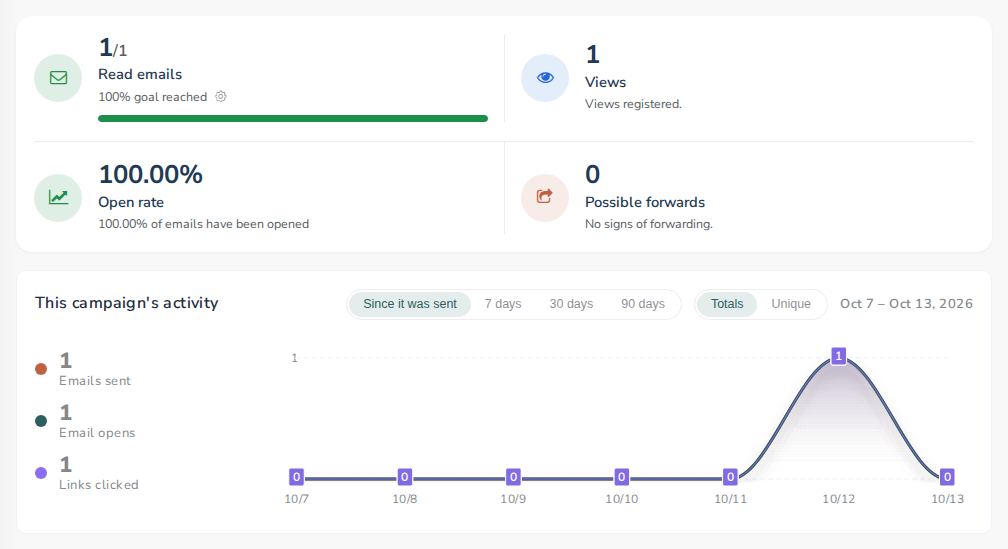
The summary cards
| Card | What it measures |
|---|---|
| Read emails | Recipients with at least one valid open out of those sent (N/M) and, below it, "…% goal reached". |
| Views | Every valid open, repeats included: someone who opens three times adds three. |
| Open rate | The percentage of sent emails that have been opened. |
| Possible forwards | Recipients showing signs of forwarding ("… likely and … possible.") or "No signs of forwarding." |
Percentages are always calculated over the emails sent: pending, failed, bounced and skipped recipients do not count. What counts as an open (and what does not) is explained in How tracking works.
The read goal
"Read emails" compares your share of readers with a goal: the point at which you consider the send a success. By default it is 20%. You change it with the "Set the goal" gear or in Settings › Tracking, under "Reading markers" (from 1 to 99%). It is the same goal that turns Gmail's second check green, and it is a personal preference: it does not change what your teammates see.
Activity over time
The chart shows, day by day, the people reached, the opens and the clicks. With "Totals" every access adds up (someone who opens five times counts five); with "Unique", each person counts once a day. You can look at the period "Since it was sent" or at the last 7, 30 or 90 days.
Below it is the email itself, exactly as it went out: you can view it as body or HTML, copy it, download it or print it.
Links, recipients and the views log
- Tracked links (only if the email has measured links; the block is titled "Links Tracked"): each URL with its "Last Click", "Total Clicks" and "Unique Clicks", that is, how many different recipients clicked it. More in Tracked links.
- Recipients: each person with their "Last Access", "Total Views" and status: "Pending", "Sent", "Open", "Failed", or "Not sent: no active recipients" when they were skipped because of an unsubscribe, a bounce or the list's policy. You can filter by recipient and by status. If there are signs of forwarding, you see "Possible forward" or "Likely forwarded".
- Views Log: each access with its date and type ("Email opened", the link clicked or "User unsubscribed"). An access from someone else carries the "Another reader" mark, and one that does not count carries "Ignored (bot)". The country map takes you to the Access log through "See more detail in the access log".
Exporting
The recipients table, the links table and the views log, like the campaign list, have a Download button with "Download CSV" and "Download XLSX". The export includes every row that matches your current filters, not just the page you are looking at, with the headers in your language.
The essentials at a glance
The Campaigns list already shows the key figures of each send: "Views progress" (readers over sent, with a bar), "Unique recipients", "Total views" and "Last view". The "Open rate" card at the top sums up the campaigns sent in the last 7, 30 or 90 days, depending on the period you pick in the header.