
The Gmail extension adds a wolf button to Gmail's top bar, next to your account picture. Its menu holds everything that applies to the extension as a whole: which account you are signed in with, which plan you are on, whether anything needs fixing, and the general options. Settings for a single email (sending mode, list, tags) live in the compose window itself: see Tracking mode, campaign mode and no tracking.
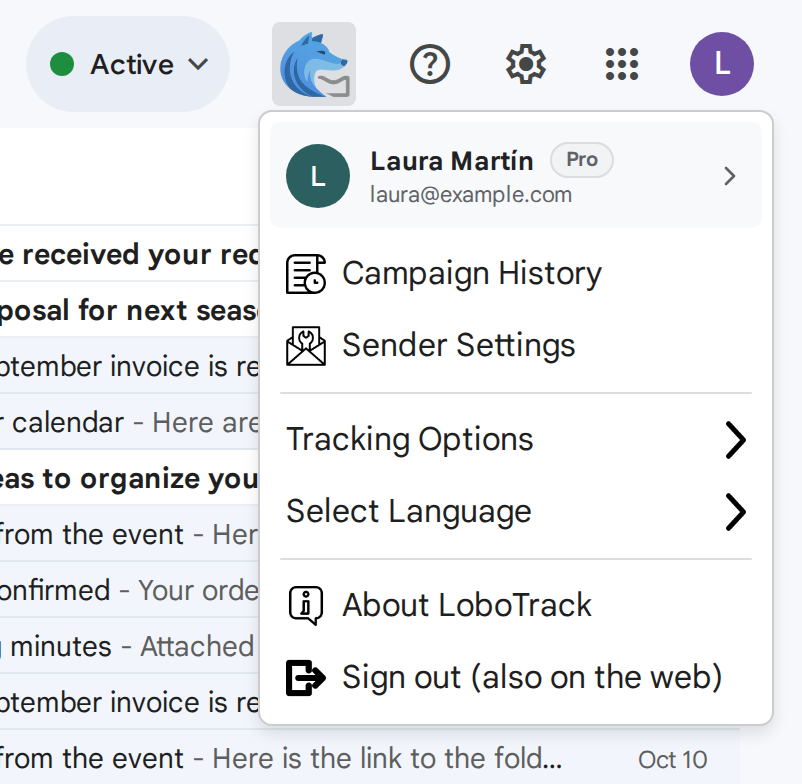
Where the button is
You will find it among the icons in Gmail's header, next to your Google account avatar. Hovering over it shows LoboTrack Mail. If Gmail changes its layout and the extension can't find that spot, the button floats in the top-right corner instead.
The wolf icon in Chrome's toolbar, on the other hand, doesn't open anything: the extension only works inside Gmail. If you can't see the button in Gmail, check I can't see LoboTrack in Gmail.
The header: your account and plan
At the very top is your LoboTrack identity: your photo or initial, your name, your email and a plan badge (Free or the name of your paid plan; if the plan isn't known at that moment, no badge is shown). A red dot on the avatar means there is a problem with your mailbox, and the alert row tells you what it is.
Clicking the header opens Session User Info, a card with:
- Account Name, Your Loboware account and the Associated Gmail Account, with its status: working when all is well, access renewal needed when it has to be reconnected, or Not linked if you don't have a mailbox yet.
- License and limits: your subscription and one bar per quota (Emails per day, Attachments per day and Email accounts) showing what you have used, the limit and when it resets. The bar turns amber from 80% and red from 95%.
- Connection tokens, a technical drop-down with a Check & renew button. You won't need it day to day; it is handy if support asks you to use it.
- At the bottom, Account settings and Sign out (also on the web).
When you are not signed in, the header reads No session and Sign in to get started, and clicking it opens the sign-in screen.
The alert row
Right under the header, a colored row appears when something needs your attention. If everything is fine, there is no row.
| Alert | What it means | Button |
|---|---|---|
| Sign in to use LoboTrack (amber) | You haven't signed in to the extension. | Sign in |
| Gmail has lost access to your mailbox (red) | LoboTrack can no longer use your Gmail: Google has expired or withdrawn the permission. | Reconnect |
| Link your Gmail to get started (amber) | You are signed in, but no Gmail account is linked yet. | Connect |
The extension doesn't ask for Google permissions: both Connect and Reconnect take you to link the mailbox in the web app, under Settings › Sending accounts. When you come back to the Gmail tab, the extension picks it up on its own. Step-by-step instructions are in Connect your mailbox and My mailbox needs reconnecting.
The options, one by one
| Option | What it does |
|---|---|
| Campaign History | Opens the campaign list of the web app in a new tab. There is no history screen inside Gmail: detailed results live on the web. |
| Sender Settings | Opens the window for your sender name and your own SMTP server. See Sender name and your own SMTP. |
| Tracking Options | Two checkboxes, Mail Tracking and Link Tracking, that set how new compose windows start. Windows you already have open keep whatever they had. |
| Select Language | English, Español or Català. If you don't pick one, the extension follows your Gmail language; once you pick one, it is remembered. |
| About LoboTrack | The installed version, a link to the LoboTrack website, the Terms and conditions and the Privacy policy. |
| Sign out (also on the web) | Signs you out of the extension and of the web app in this browser. Only shown while you are signed in. Details in Sign out and switch accounts. |
When you are signed out, Campaign History, Sender Settings and Tracking Options are grayed out and don't respond; the language and About LoboTrack still work.