
In LoboTrack web mail (LoboMail), a tracked email isn't sent by the mail client: LoboTrack's server sends it through your account's SMTP, with a read pixel for each recipient and links set up to count clicks. You write as usual and control everything from the badge on the compose window. First you'll need your mailbox added and LoboTrack connected.
The mode badge
In the title bar, next to "New Message", you'll see the mode for that email:
| Badge | What it does |
|---|---|
| Tracking (blue) | One email to everyone, with read tracking per recipient. This is the default. |
| 1-to-1 campaign (red) | A personal email to each recipient: nobody sees the others. |
| No tracking (gray) | The web client sends it as usual, without LoboTrack. |
| Connect LoboTrack (amber) | The connection to LoboTrack is missing. |
Underneath, in small print, you'll see the list, the number of tags or the scheduled time. No badge means the From account isn't a LoboTrack mailbox.
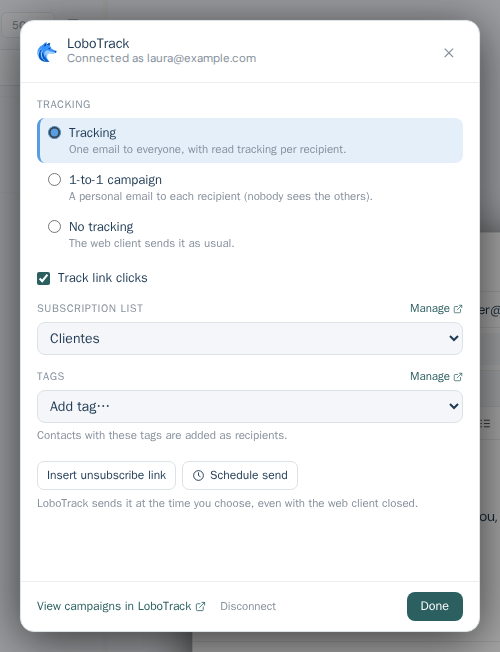
The LoboTrack window
Clicking the badge opens the LoboTrack window:
- Mode: the ones in the table. With "No tracking", the other options are grayed out.
- Track link clicks: on by default.
- Subscription list: the list your recipients are added to. If you don't pick one, it's the "General list (default)", which "Contacts" and the web app call "Default list". Manage opens your lists in the web app.
- Tags: use Add tag… to pick contact tags; contacts with those tags are added as recipients.
- Insert unsubscribe link: adds an "Unsubscribe" link that's personal to each recipient (The unsubscribe header and the link in the body).
- Schedule send: see below.
Close it with Done, the cross, Esc or a click outside. Your choices apply to that email and, if they include tracking, become the starting point for the next ones.
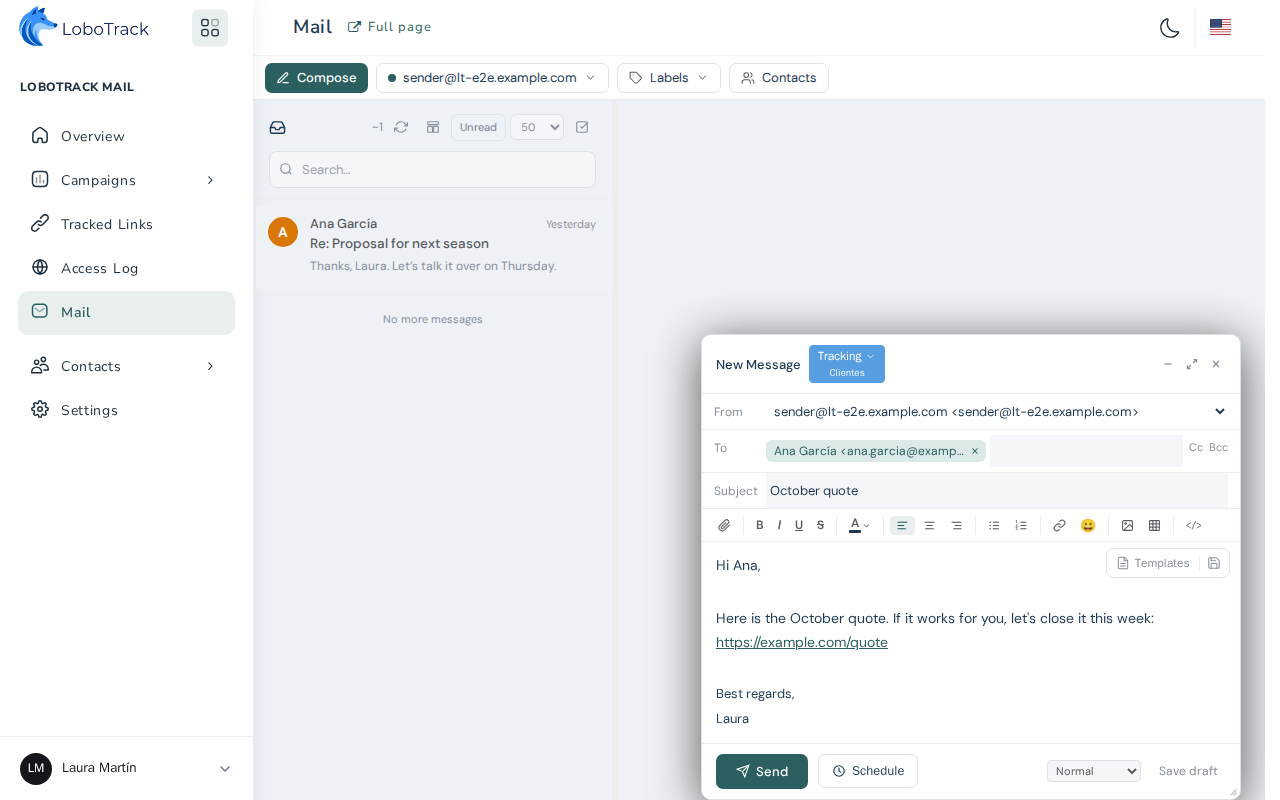
Send
- Click Compose and pick your LoboTrack mailbox in From.
- Check the badge and, if needed, the options.
- Add at least one recipient in To: it's required even if you add tags.
- Write the subject and the message, and click Send.
Before anything goes out, LoboTrack may stop you with these checks, in this order:
- "This email has no subject": LoboTrack uses the subject to name the campaign. Choose Add a subject or Send it without tracking.
- No text or images: "Write the message before sending it with tracking."
- "Not enough sending quota left today", with See plans, Cancel and Send what fits (more in Sending limits).
- "Your plan adds the LoboTrack watermark", on the free plan or if your company hasn't assigned you a license, with See plans, Cancel and Send anyway (more in The watermark).
If you cancel or close the quota or watermark notice, you'll see "Sending cancelled." and the email stays open.
Progress and the Sent copy
The compose window closes and "Sending with tracking…" appears in the bottom-left corner, then changes to "Sent with tracking" with the tally (sent, failed and skipped) and View in LoboTrack. If the daily limit runs out, you'll see "Sending stopped · Daily limit reached.". If it stays on "Sending with tracking…", the send carries on in the server: check it in the web app.
LoboTrack saves an untracked copy in your Sent folder: opening it doesn't count as a read, and it's where you'll see the status (See opens and clicks). Replies stay in their thread.
Schedule
With "Tracking" or "1-to-1 campaign", there's a Schedule button next to Send. The "Schedule send" window offers Tomorrow morning (8:00), Tomorrow afternoon (13:00), Monday morning or Date and time, anywhere from 1 minute to 90 days ahead. Confirming runs the same checks, and you'll see "Scheduled for…". LoboTrack sends it even if you close the web mail (it can go out up to a couple of minutes after the chosen time).
- The date only covers that attempt: if the send stops (say, you choose "Add a subject"), schedule it again.
- A scheduled send can only be cancelled from the web app, with Cancel schedule on the campaign (Campaign statuses).
Attachments
With tracking, files don't travel as attachments: LoboTrack uploads them and the recipient gets download links, which count clicks too. Images pasted into the text are hosted the same way. Limits: 10 files, 15 MB each and 20 MB in total, and 20 images in the text (PNG, JPEG, GIF or WebP). Go over them and you'll see "Could not send with tracking:" followed by a code: FILES_TOO_MANY (more than 10 files), FILE_TOO_LARGE (one file over 15 MB), FILES_TOO_LARGE (over 20 MB in total) or TOO_MANY_INLINE_IMAGES (more than 20 images).
If you need real attachments, send that email with "No tracking". Forwarding as an attachment isn't possible with tracking; a normal forward is. More in Problems with attachments.