
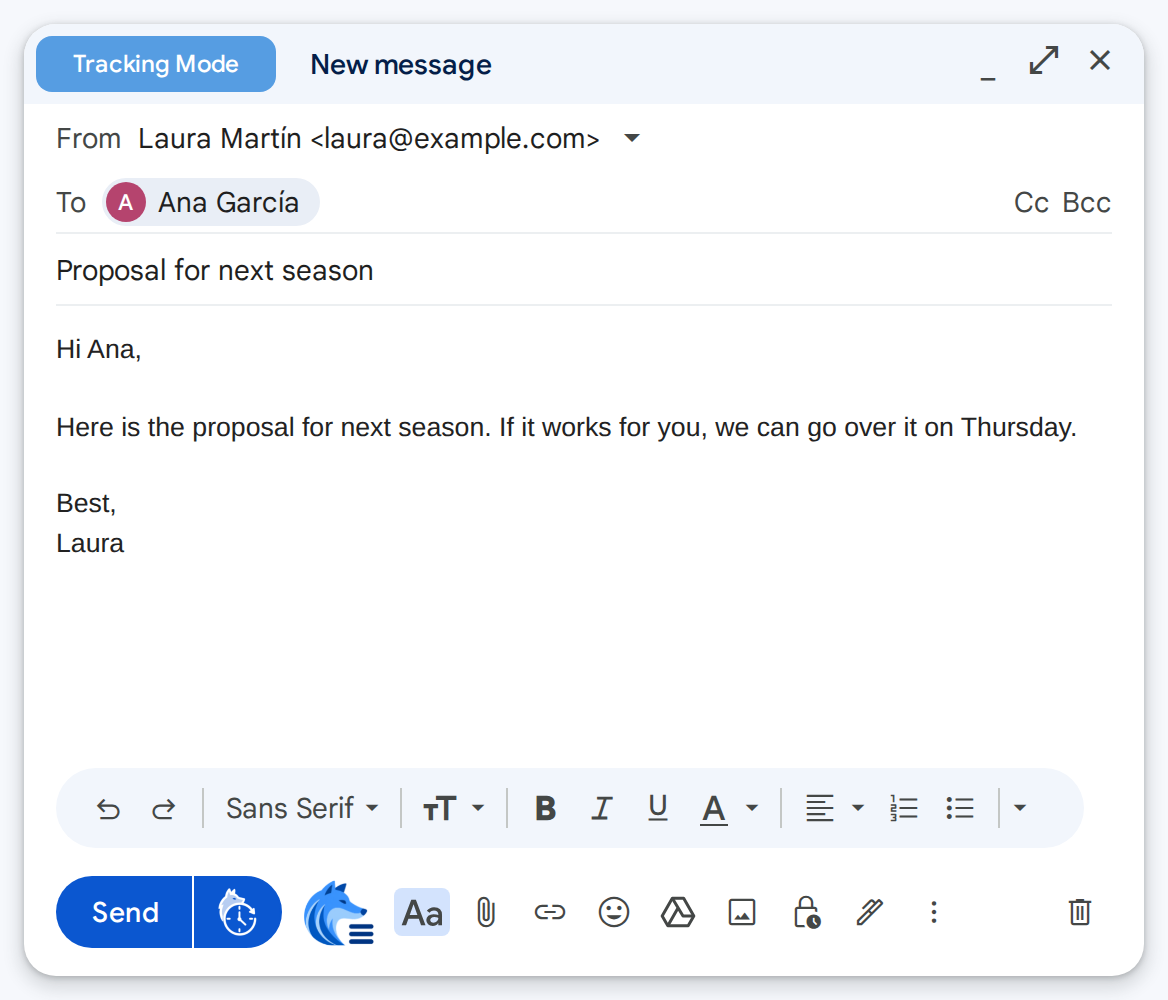
Every Gmail compose window carries a LoboTrack badge in its title bar that tells you how that email will go out. This article covers the three sending modes, what each recipient receives, and where to change the mode and the rest of the options.
The badge in the compose window
| Badge | What it means |
|---|---|
| Tracking Mode (blue) | The email goes out tracked, like a normal email to several people. |
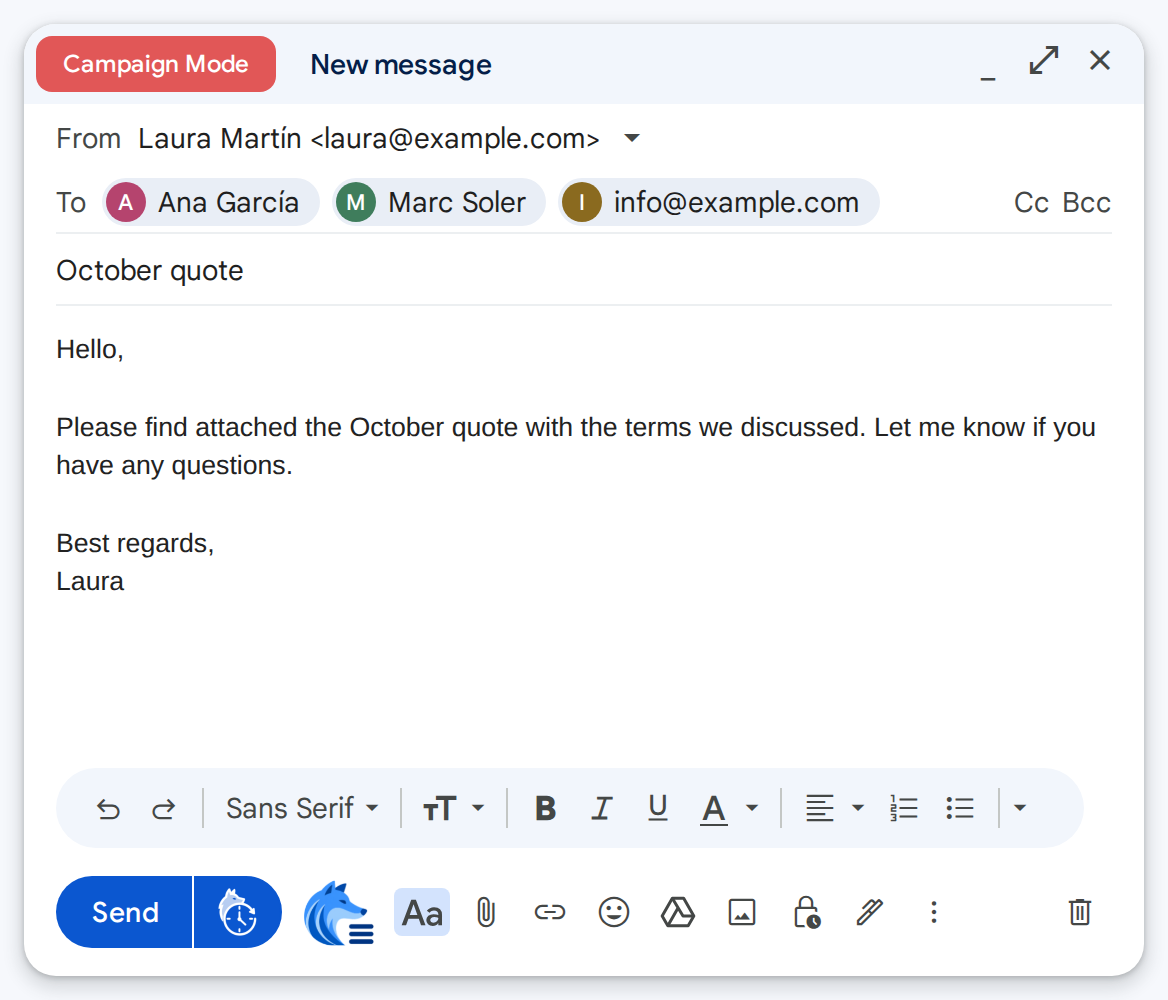
| Campaign Mode (red) | Each recipient gets their own separate email. |
| No tracking (gray text) | Gmail sends it as usual; LoboTrack stays out of it. |
| Connect LoboTrack (amber) | There is no working session: you still need to sign in or link your mailbox. |
Underneath, you may see in plus a list name (when it isn't the default list) or from plus an address (when the email will go out from another account). In replies inside a conversation, the badge shows up as a tab on the edge of the reply.
The three modes
Clicking the badge opens the LoboTrack panel, which presents the three modes with a one-line description each.
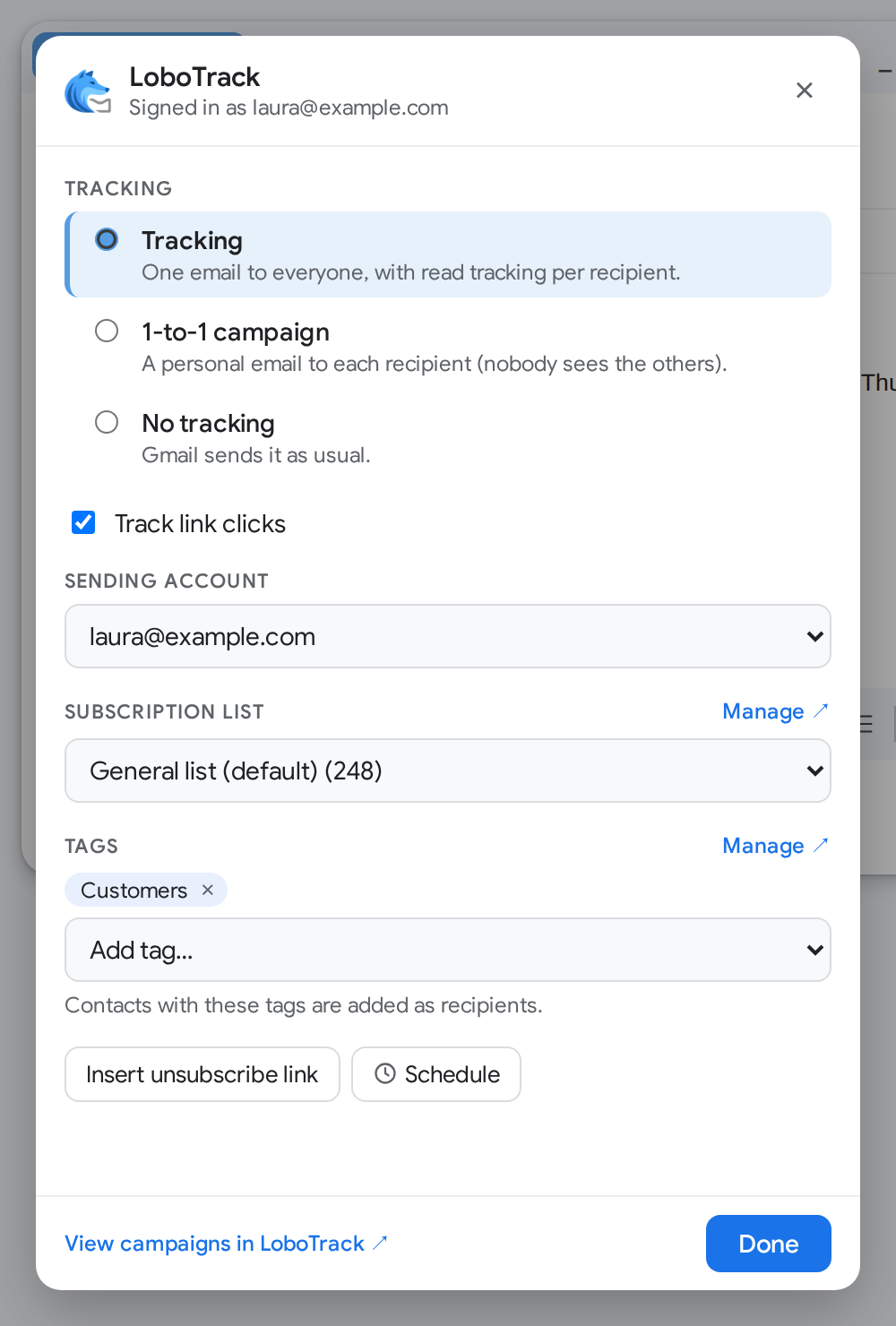
- Tracking Mode. One email to everyone, with read tracking for each recipient. People in To and Cc see each other, as in any group email, and LoboTrack still knows who has read it.
- Campaign Mode. Each recipient gets an email addressed to them alone, and nobody sees the others. It is designed for sending the same message to many people. The text is the same for everyone: there are no fields that change per recipient, such as their name.
- No tracking. The email leaves Gmail as if LoboTrack weren't there: no tracking and no status checks.
In both tracked modes, each recipient counts as one send towards your daily quota.
What happens when you press Send with tracking on
LoboTrack stops Gmail's own send and sends the email from its server instead. A window shows you the progress, and Gmail displays the yellow bar LoboTrack Tracking: Email Sending. Once LoboTrack accepts the send, the compose window closes. Before that, you may get a notice: recipients or subject are missing, the attachments can't travel from the chosen account, the send doesn't fit in your daily limit, or it will carry the watermark (Free plan). Closing a notice means not sending.
Where to change the mode and everything else
There are two places, and both change the same settings:
- The LoboTrack panel, shown above. Under Tracking you choose Tracking (Tracking Mode), 1-to-1 campaign (Campaign Mode) or No tracking. Below are Track link clicks, Sending account, Subscription list, Tags, Insert unsubscribe link and Schedule. Close it with Done.
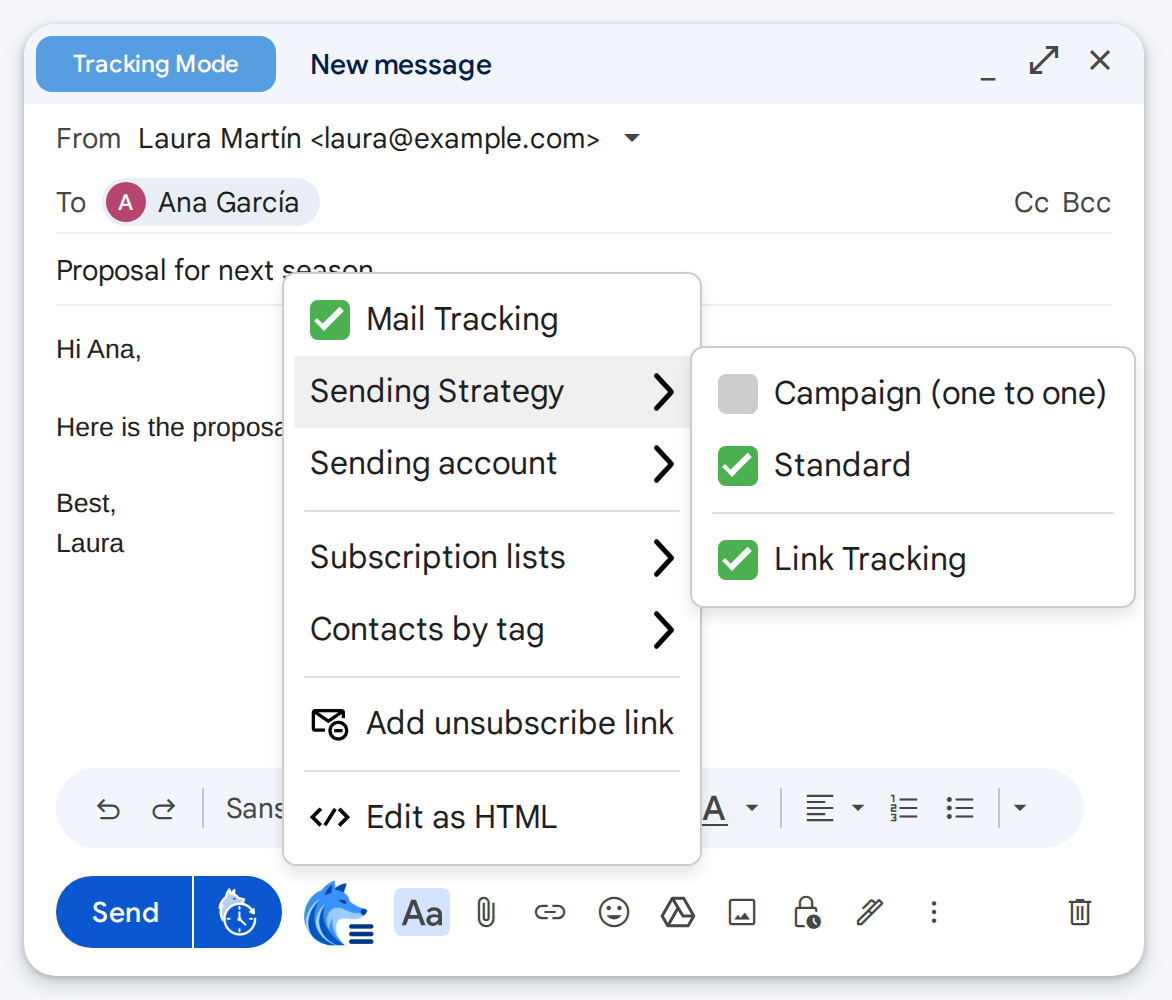
- The wolf button in the bottom toolbar, to the right of Send and the schedule button. Its menu has Mail Tracking, Sending Strategy (Campaign (one to one), Standard, which is Tracking Mode, and Link Tracking), Sending account, Subscription lists, Contacts by tag, Add unsubscribe link and Edit as HTML.
With tracking off, lists, tags and the unsubscribe link are disabled. Changes apply to that email only. When you pick a tracked mode, it also becomes the mode new windows start with; turning tracking off in one window doesn't change that. To decide whether new windows start with tracking on or off, use Tracking Options in the wolf menu in the top bar.
Tags, lists and the unsubscribe link
- Tags are your LoboTrack contact tags, not Gmail labels. Every contact with the chosen tag is added as a recipient; the tag shows up as a pill above the recipients, with its number of contacts.
- Subscription list says which list the recipients belong to, and it is what unsubscribes are managed with. The default one is called General list (default) in the panel and Default list in the wolf menu. More in Contacts, lists and tags.
- Insert unsubscribe link adds "Don't want these emails? Unsubscribe here: Unsubscribe" to the end of the body, in the extension's language. The unsubscribe options are explained in The unsubscribe header and the link in the body.
The sending account
Normally the email goes out from the Gmail account you have open. Any other linked Gmail account appears under Sending account marked (testing): if you pick it, the email goes out from that account, replies go there and attachments don't travel. Read When the open Gmail isn't the linked one first.