
In the wolf menu in Gmail's top bar, Sender Settings opens the Sender Configuration window. There you decide two things about the emails LoboTrack sends: the name shown next to your address and, if you want, your own SMTP server for them to go out through.
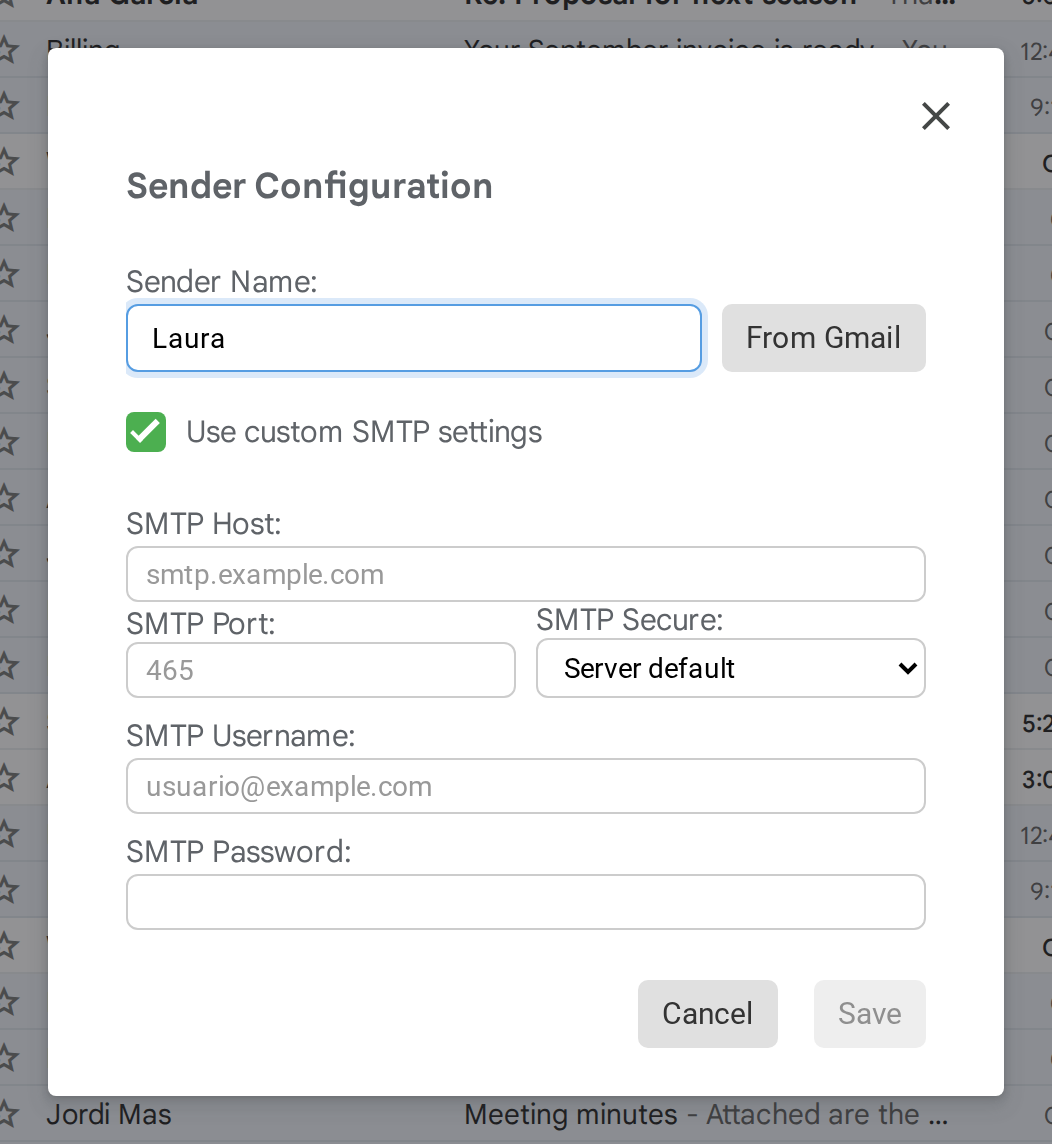
The sender name
Sender Name is required: it is the name your recipients see next to your address.
If you'd rather not type it, click From Gmail: it fills in the main "Send mail as" name from your Gmail or, if there isn't one, the name on your Google profile. If clicking it shows Login Required ("You must be logged in to perform this action."), the name couldn't be read from Gmail; type it in yourself and save.
You can also change the name in the web app, under Settings › Sending accounts, from the account's menu.
Using your own SMTP server
By default, LoboTrack sends through your Gmail, within Gmail's daily limits. With your own SMTP server, emails go out through your server without using up Gmail's limit, and you keep writing and organizing your email in Gmail as usual.
- Tick Use custom SMTP settings. The server fields appear.
- Fill in SMTP Host (for example, smtp.example.com), SMTP Port (for example, 465), SMTP Secure, SMTP Username and SMTP Password. For SMTP Secure you can choose Server default, Secure (TLS) or Not secure.
- Click Save. It only becomes active when there are changes and the form is complete. With SMTP on, the window stays open so you can test it.
- Click Test SMTP. The status goes from Not tested to Testing... and ends in Status: ok, Status: failed or Status: error.
Test SMTP only appears once the settings are saved, with no pending changes and the checkbox ticked. If you try earlier, you will see You must save your SMTP settings before testing.
Your email provider, or whoever manages your domain, can give you the server details. If you are not sure about them, leave the box unticked: without your own SMTP, LoboTrack sends through your Gmail and everything works just the same.
Your SMTP password
The password is sent once to the LoboTrack server and is not stored in your browser. That is why, when you reopen the window, the field shows dots instead of the password. If you change the host, port or username, you will have to type the password again.
If something doesn't add up
When you save, the Invalid configuration window tells you what is missing:
| Message | What to check |
|---|---|
| Please enter a valid sender name. | The name is empty. |
| Please enter a valid SMTP host (e.g., smtp.example.com). | The host only accepts letters, numbers, dots and hyphens. |
| Please enter a valid SMTP port (1-65535). | The port must be a number from 1 to 65535. |
| Please enter an SMTP username. | The username is missing. |
| SMTP username looks like an email but is invalid. | Check the address you typed as the username. |
| Please enter an SMTP password. | The password is missing (also after changing host, port or username). |
If the test ends in Status: failed, you get SMTP test failed with the server's message, or Failed to test SMTP server. Go over the host, port, security setting and username, and check with your provider that your account is allowed to send over SMTP. If you need help, copy that message: it is the first thing support will ask for.
The same thing, from the web app
SMTP accounts can also be managed in the web app, under Settings › Sending accounts, with Add SMTP account. There you can see each account's status and limits, and it is where you add the incoming mail (IMAP) that LoboTrack web mail, shown as "LoboMail", needs. It is all in Connect your mailbox.