
With tracking on, you can leave an email ready to go out later: anywhere from one minute to 90 days ahead. LoboTrack's server sends it at the time you chose, so Gmail and your computer don't need to stay open. Here is how to schedule it, why Gmail's button changes, and where scheduled sends are managed.
The wolf-and-clock button
Next to Gmail's Send button you will see a button with a wolf and a clock; hovering over it shows Schedule send. You can also schedule with Schedule in the LoboTrack panel, the one that opens when you click the mode badge.
The button is there whenever the email is tracked (Tracking Mode or Campaign Mode); if you choose No tracking, it disappears. If your LoboTrack session isn't working, it is grayed out and clicking it takes you to sign in.
Why Gmail's Schedule send is missing
Gmail has its own scheduling, behind the arrow attached to the Send button. While tracking is on, LoboTrack hides that arrow: an email scheduled with Gmail would be sent by Gmail without going through LoboTrack, so it would carry no tracking. The wolf-and-clock button takes its place.
If you want to use Gmail's scheduling for an untracked email, switch that email to No tracking and the arrow comes back.
Scheduling step by step
- Write the email with at least one recipient (or a tag with contacts) and a subject. LoboTrack checks this before opening the calendar.
- Click the wolf-and-clock button, or Schedule in the LoboTrack panel.
- In Send date and time, pick the moment. It uses your computer's local time, and the window opens set to one hour from now. Below it, Will send: shows the full date so you can double-check.
- Click Schedule. You may get the same notices as when sending: attachments that can't travel from another account, the daily limit or the watermark.
- You will see Send scheduled! with Scheduled for and the date. The compose window closes.
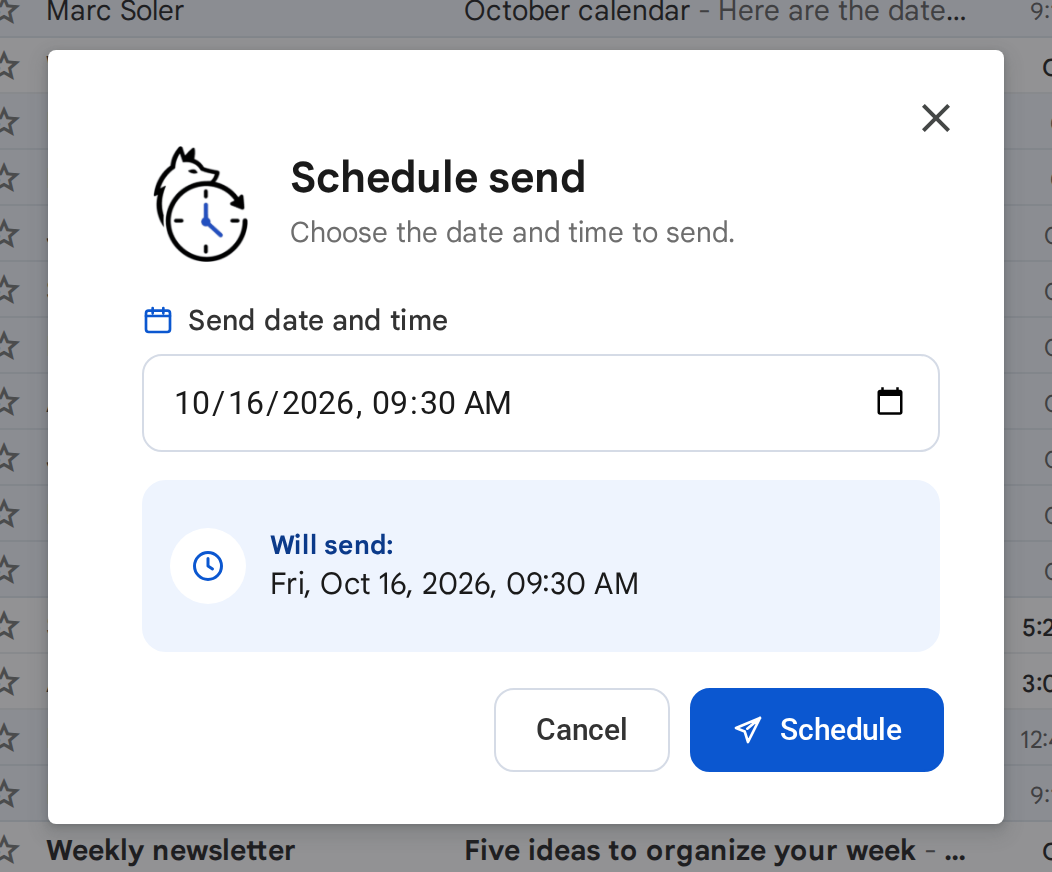
Cancel, the × or the Esc key close the window without scheduling or sending anything.
Date limits
The date must be between 1 minute and 90 days in the future. Otherwise the window tells you:
- The selected date is not valid.
- The date must be at least 1 minute in the future.
- The date can be at most 90 days from now.
The server checks the date again; if it rejects it, the window reopens with your date and the reason. Once scheduled, the email may go out up to a couple of minutes after the chosen time: the server checks pending sends every two minutes.
Viewing, changing or cancelling a scheduled send
You can't do this from the extension: it is done in the web app. Get there with Go to the campaign in the confirmation window, or with Campaign History in the wolf menu.
- In Campaigns, the In progress card ("Scheduled or queued") gathers everything pending, and your email shows the Scheduled status.
- Its calendar icon ("Scheduled — reschedule or cancel") opens the send panel with the date filled in: pick another date to reschedule, or Cancel schedule. The campaign's detail page offers the same.
- Cancelling turns the campaign back into a draft. If it has already started going out, you will see Could not cancel the schedule. It may already be sending.: a campaign that is running can't be stopped.
The text of an email scheduled from Gmail can't be opened in the web editor. To change it, cancel the schedule (the campaign stays in the web app's Drafts, where you can delete it) and write and schedule it again from Gmail. Campaign statuses are explained in Campaign statuses.
Scheduling from elsewhere
You can also schedule from LoboTrack web mail, shown as "LoboMail" (Send with tracking from LoboTrack web mail), and from New campaign in the web app, where the minimum is 5 minutes (Create a campaign in the web app).