
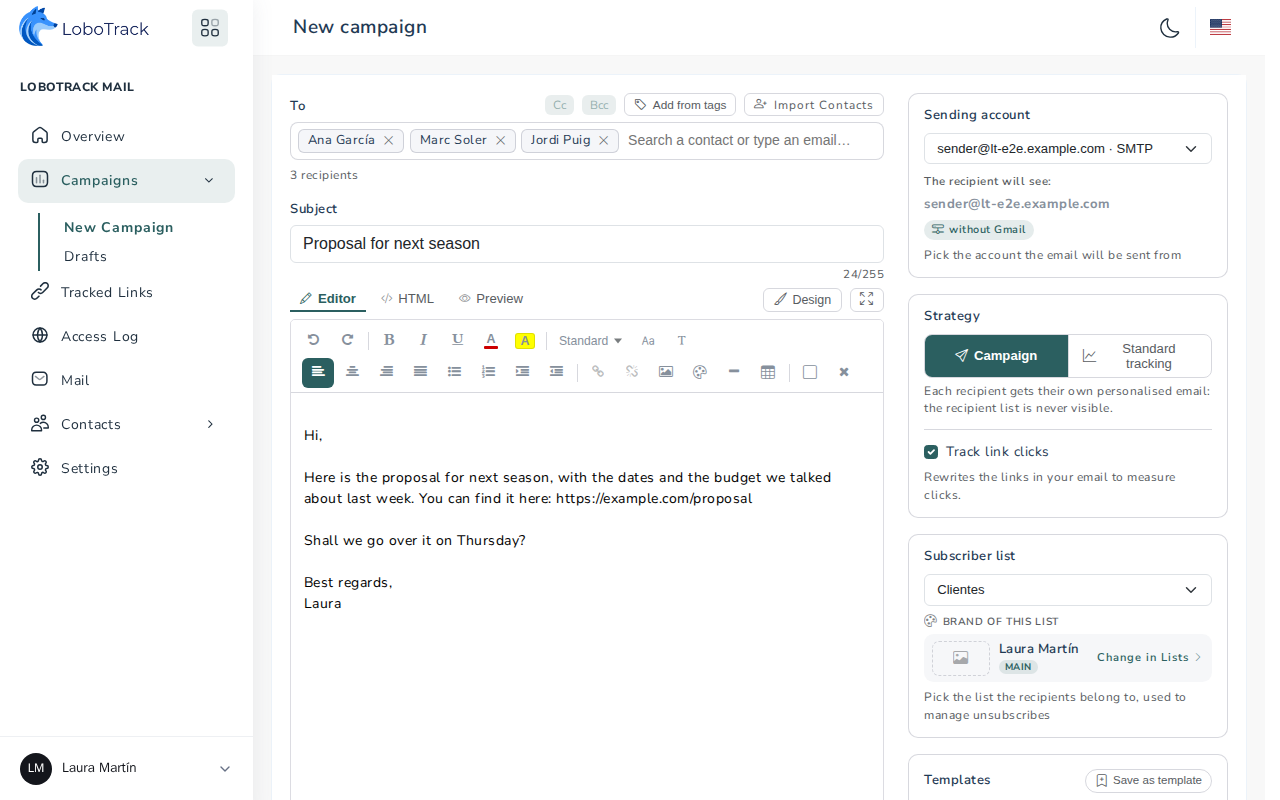
The web app gives you more room to prepare a campaign than Gmail does: an editor with an HTML mode, templates, design options, attachments, a test send and scheduling. You'll find it under Campaigns › New campaign (the page breadcrumb reads Compose). Campaigns you send from the Gmail extension or from LoboTrack web mail (shown as "LoboMail") show up in the same list.
You need a sending account in Settings › Sending accounts first; without one, the composer tells you You don't have any linked sender yet. See how to link your Gmail or an SMTP server.
Step by step
- Under Sending account, choose the account it goes out from. Your Default account is preselected.
- In To, search for a contact or type a full address. Add from tags adds every contact with a tag (the final total removes duplicates).
- Write the Subject and the body, in the Editor tab or in HTML. If you like, start from one of the Templates and adjust the look in Design.
- Pick the Strategy and the Subscriber list, and click Add unsubscribe link if you want the link in the body.
- Attach files if you need to and, in Preview, send yourself a test with Send me a test.
- Click Schedule or send and choose Send now or Schedule…. Not ready yet? Save draft.
Campaign or Standard tracking
The Strategy decides what each recipient sees. In both modes every copy carries its own pixel and its own links, so tracking is always per recipient.
| Campaign (default) | Standard tracking | |
|---|---|---|
| What the recipient sees | Only their own address: the recipient list is never visible | Everyone in To and Cc, like a regular group email |
| Cc and Bcc | Not available | Available |
The Track link clicks switch, on by default, rewrites your links so clicks can be counted (Tracked links). The values every new campaign starts with can be changed in Settings › Composing preferences.
Recipients, list and unsubscribing
- Every address you send to is saved to Contacts automatically. To bring in many at once, use Import contacts.
- The Subscriber list is "used to manage unsubscribes". If you don't pick one, the campaign goes to the Default subscriber list. The list decides who gets the email (it skips people who unsubscribed, for example), the unsubscribe footer and the brand: Contacts, lists and tags.
- Add unsubscribe link inserts the list's unsubscribe footer at the end. How it works alongside the unsubscribe header is covered in The unsubscribe header and the link in the body.
Attachments
Attachments don't travel inside the email: they're uploaded to LoboTrack, and the email carries an Attached files block with Download links.
| Limit | Value |
|---|---|
| Files per campaign | 10 |
| Size of each file | 15 MB |
| Image inserted in the body | 5 MB |
| Total hosted (files and body photos) | 20 MB |
| HTML body | 2 MB |
Executables and scripts (exe, bat, js, sh…) aren't allowed. Each email with attachments uses one unit of the daily emails-with-attachments quota, however many files it carries: Sending limits.
The test send
Send me a test sends a copy with a [TEST] prefix to the address you enter, attachments included. You can send 10 tests an hour. Tests don't use your quota, don't create a campaign and aren't tracked.
Send, schedule or save
- Send now: sending starts right away, and the sending panel opens to show progress.
- Schedule…: pick the Send date and time in your local time, at least 5 minutes ahead and no more than 90 days out. It goes out on its own, up to about 2 minutes after the chosen time, and you don't need to keep your browser open.
- Save draft: the campaign waits in Campaigns › Drafts, where you can edit, send or schedule it, several at a time if you like.
To change the time or cancel a scheduled campaign, open it and click Cancel or reschedule; Cancel schedule turns it back into a draft. Edit on a scheduled campaign changes its content, not its time. More in Campaign statuses.
How it goes out
- One by one, at a steady pace: by default about 60 emails a minute (one per second), adjustable for each sending account.
- Campaigns from the same sending account, or the same SMTP server, go out one at a time; the next one waits as Queued and starts on its own.
- When sending starts, you get a reference copy without tracking: it's the one the extension uses to show its markers in Gmail.
- Limits are checked before every email. If one runs out, the campaign stops as Interrupted and you pick it up again with Retry send.
- Once a campaign has started, it can't be paused or stopped.
What each status means and what to do about it: Campaign statuses.