
The LoboTrack web app (app.lobotrack.com) is the dashboard where you create campaigns, see who opens your emails, manage your contacts and set up the accounts you send from. It uses the same account as the Gmail extension and LoboTrack web mail (shown as "LoboMail"), so whatever you send from any of the three shows up here. Think of this article as a map.
Signing in
The web app has no sign-in screen of its own. If you open app.lobotrack.com without a session, it takes you to the LoboTrack sign-in window and brings you back to the dashboard once you're in. The same happens if your session expires while the page is open: sign in again and you land back on the page you were on. No account yet? See Create your account and sign in.
If you don't have a sending account yet, you'll see the notice You don't have any sending account yet when you arrive. Set up takes you to Settings › Sending accounts; Not now dismisses it for this browser session. You can't send campaigns without a sending account, so link your Gmail or an SMTP server first.
The screen
- Header: the logo (back to the home page), the button that collapses the side menu, the page title, the period selector on pages that use it, the theme button and the language selector (the flags).
- Side menu: every section. You can pin any entry with its pushpin; pinned entries show up at the top, under Pinned.
- Account menu, at the bottom of the side menu: your avatar and name. That's where you open your account and log out.
The side menu
| Entry | What you'll find |
|---|---|
| Overview | The home page, with activity for the selected period. |
| Campaigns | All your campaigns and their status. Inside it, New campaign to create one and Drafts for the ones you haven't sent yet. |
| Tracked Links | The links in your emails and their clicks: Tracked links. |
| Access log | Every open and click, with location, device and possible forwards: Access log. |
| LoboTrack web mail, inside the dashboard. | |
| Contacts | Your contacts, with Import Contacts, Subscriber Lists and Tags: Contacts, lists and tags. |
| Settings | Sending accounts, limits, brand, preferences and your account: Web app settings. |
Two things worth knowing:
- Contacts has no button to add a single contact by hand. The addresses you send to are saved automatically (which is why the page is called Collected Contacts); everything else comes in through an import.
- Mail only works with an SMTP account that has IMAP receiving set up and Use this account in the mail client ticked. If you don't have one, it sends you to Sending accounts to add it. The Full page link opens it outside the dashboard, and on a phone the menu entry opens mail.lobotrack.com in a new tab. More in What LoboTrack web mail is.
The home page
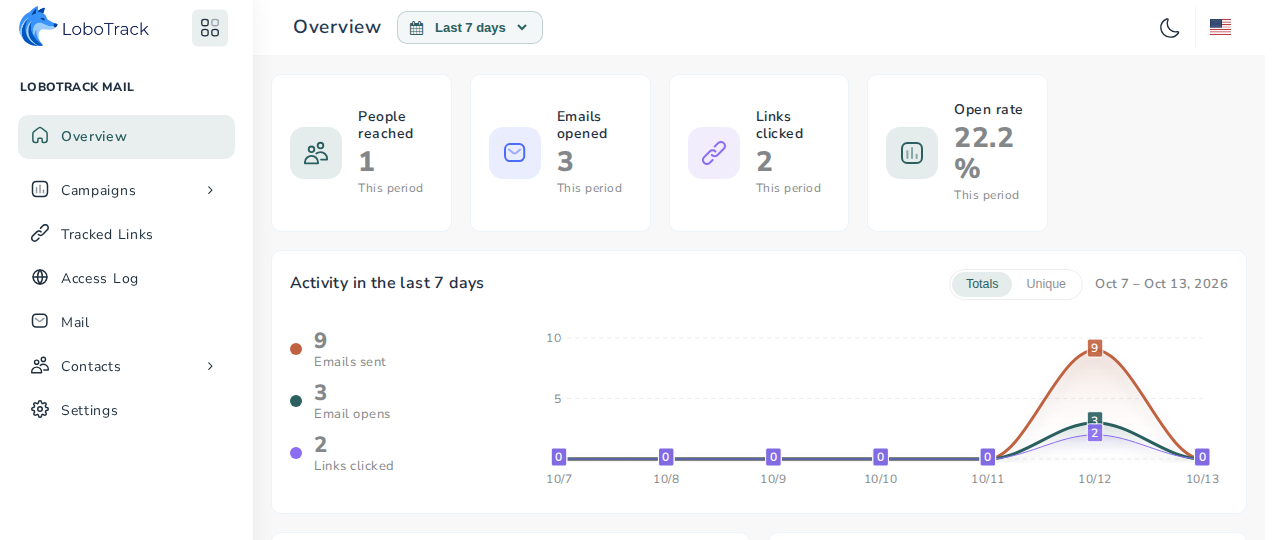
Overview sums up activity for the period you pick in the header (Last 7 days, Last 30 days or Last 90 days):
- Four indicators: People reached, Emails opened, Links clicked and Open rate.
- The activity chart, with two ways of counting: Totals (every access counts, so someone who opens five times counts five) and Unique (each person counts once a day).
- Last Campaigns: your five most recent, with a New campaign button and a View all campaigns link.
- Recent Viewers: contacts with recent activity; View all visitors takes you to Contacts.
What counts as an open, and what doesn't, is explained in How tracking works.
Your account, profile and billing
Your profile, team, plans and billing aren't managed inside the web app but in your account portal. The web app takes you there:
- In Settings › Account, the Edit profile, Members and Manage billing buttons open the portal at the right section.
- The same block holds Plans, with the catalog and plan changes, and License & limits, with your plan and how much of each limit you've used. More in Plans and limits and Billing.
- The account menu at the bottom of the side menu also opens your account, and has Log out.
Language and theme
The flags in the header switch the app's language: English, Español, Français or Português. While you're signed in, the language you pick is also saved to your profile. Next to them, the theme button cycles through light mode, dark mode and automatic (following your system). The details are in Web app settings.