
With the extension installed and your mailbox linked, sending with tracking is just writing an email as usual. There are two places to do it: the Gmail compose window and the LoboTrack web panel.
From Gmail
When you compose, the LoboTrack bar appears at the bottom of the window with tracking on by default; the window confirms it with the "Campaign Mode" caption. Everything else is adjusted from the wolf menu: the sending strategy, link tracking, the subscriber list and the unsubscribe link.
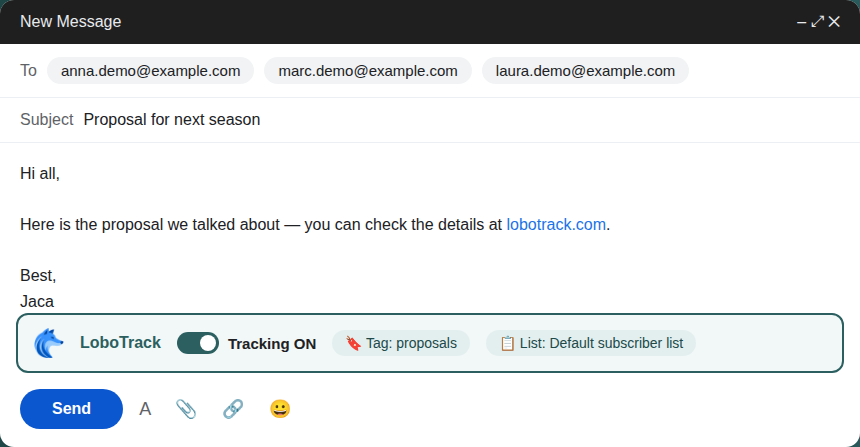
- Write the email as usual: recipients, subject and message.
- Check the LoboTrack bar: tracking on and, if needed, the subscriber list or the contacts from tags.
- In the wolf menu, pick the strategy: Campaign (one by one) — each recipient gets their own personalised copy and never sees the rest — or Standard. Link Tracking also measures clicks.
- Click Send, or the schedule button to leave it ready for later (up to 90 days).
- Follow the progress window until "Process completed", with the shortcut to the campaign.
From the web panel
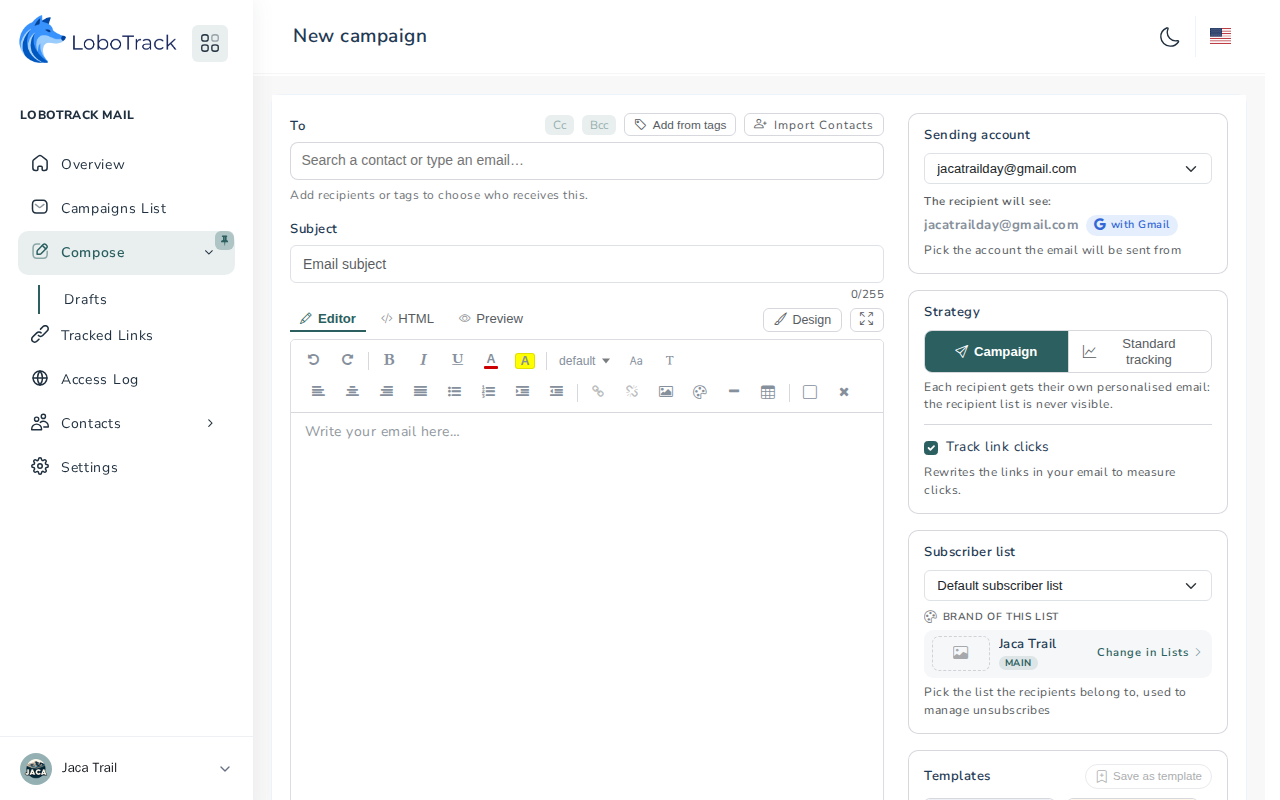
The panel (Compose) gives you the same send with more room: an editor with preview and HTML mode, contact import, templates and the sending account picker. The strategy is the same: Campaign (one by one) or Standard tracking, with the Track link clicks checkbox to measure clicks.
The Gmail double check
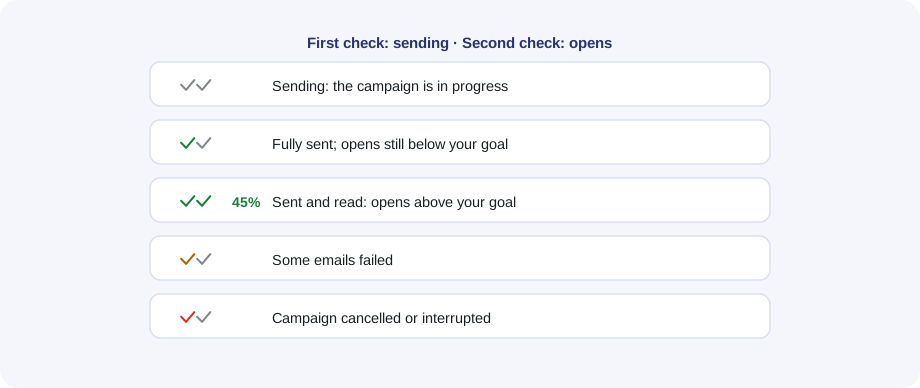
Next to the reference email, in your Gmail list, LoboTrack paints a double check: the first one tracks the sending and the second one the opens. The percentage appears as soon as there are readers, and the wolf icon next to it opens the campaign in the panel.
The states of a campaign
In the panel's campaign list you will see these states:
| State | What it means |
|---|---|
| Scheduled | It will go out on its own at the date you chose |
| Queued | Waiting its turn: another campaign of this account is being sent |
| Sending | It is being sent right now |
| Sent | All the emails went out |
| Partial | Some emails could not be sent |
| Failed | The campaign could not be completed |
| Interrupted | The campaign is stopped and will send no more emails |
| Not sent: no active recipients | No recipient was available (unsubscribed, bounced or blocked) |
Each recipient, in turn, moves from "sent" to "open" as soon as they open the email; you can see it in the campaign detail.