
LoboTrack tells you who opens your emails and which links they click, and lets you send campaigns where every recipient gets an email of their own. This article covers what tracking is, the three places where you can use LoboTrack with the same account, and which one suits the mailbox you use.
What tracking is
A tracked email goes out from your own mailbox, in your name, and replies land in your inbox as usual. The difference is that every copy carries two things that measure what happens next:
- A small image, different for each recipient. When their mail program downloads it, LoboTrack records an open.
- Links that go through LoboTrack, if you turn on click tracking. The recipient ends up on the usual page, and you see who clicked and on what.
An open is a signal, not a certainty: some mail programs block images and some providers download them automatically, without anyone opening the email. LoboTrack filters out what it can; the details are in How tracking works.
There are two ways to send with tracking:
- One email to everyone, like a normal group email, with each recipient's opens tracked separately.
- A 1-to-1 campaign: every recipient gets their own email and nobody sees the others.
Each place names them slightly differently; they are all covered in Sending modes.
One account, three places
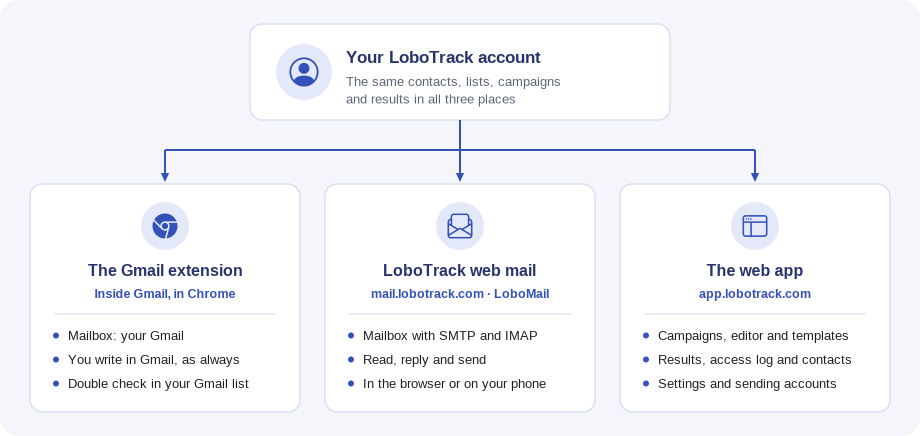
Your LoboTrack account gets you into all three places. If your session is already open in the browser, the others recognize you without asking for your password again. And everything is shared: what you send from Gmail or from LoboTrack web mail shows up in the same campaign list in the web app.
The Gmail extension
A Chrome extension that works inside Gmail. It adds the wolf button to Gmail's top bar, a badge showing the sending mode in every compose window, and a double check on your sends. You write as usual and, when you click Send, LoboTrack does the sending. Your Gmail is linked once in the web app, and the extension picks it up on its own. Start with Install the extension.
LoboTrack web mail
A web mail client at mail.lobotrack.com, which you will see under the name "LoboMail". It also opens inside the web app, from the Mail menu. It has an inbox, folders, reading and replying, and when you compose it offers the same tracking modes as the extension. It works with mailboxes from any provider that offer SMTP and IMAP with a username and password. A Gmail account linked through Google does not open here. Everything about it is in LoboTrack web mail.
The web app
At app.lobotrack.com you see the results of your sends (campaigns, the access log and tracked links), manage contacts, lists and tags, and prepare campaigns with an editor, templates and a preview. It is also where everything is set up: sending accounts, limits, branding and the tracking colors. Your account, profile, team and billing live in your account portal, which opens from inside the app. Take the web app tour.
Which one suits you?
It mostly depends on your mailbox. They are not mutually exclusive: the usual setup is to send from one of the first two and check results in the web app.
| If… | Use |
|---|---|
| Your email is Gmail and you use it in Chrome | The Gmail extension: you keep writing in Gmail |
| Your email is with another provider (for example, your own domain) and you have its SMTP and IMAP details | LoboTrack web mail |
| You want to prepare a campaign calmly, with templates, a test send and scheduling | The web app, with New campaign |
| You want to see results or change settings | The web app |
Getting started
- Create your account.
- Connect your mailbox in the web app: Gmail or an SMTP account.
- If you use Gmail, install the extension.
- Send your first tracked email.